
Writing in each language
Write in Markdown
Draft with familiar Markdown and produce a PDF or an editable document for collaborators.
Markdown works well for research notes, reports, and early drafts. Oleafly gives it a dedicated formatting toolbar and a Pandoc build path, with source files you can use outside the app.
Make a report
Section titled “Make a report”- Choose New project → Use a template → Blank Markdown document.
- Name the project Field notes and open
main.md. - Paste this example, then choose Recompile or press ⌘Enter / Ctrl+Enter.
- If Oleafly offers to set up a required engine, complete that setup and compile again.
---title: "Field notes"author: "Alex Chen"date: ""---
# Question
Does the revised procedure reduce measurement time?
## Method
1. Prepare the sample.2. Repeat the measurement three times.3. Record the elapsed time.
## Observations
| Run | Time (s) | Note || --- | --- | --- || 1 | 12 | First pass || 2 | 10 | Repeated pass |
The **mean time** will be compared with the baseline.
The PDF should include a title, headings, a numbered list, and a table. The metadata between the first pair of --- lines controls the document title and author.
Document types
Section titled “Document types”Add a type line to the front matter to build the document as a report, a book, slides, a poster, a letter, or a CV. Without type, or with a value Oleafly doesn’t know, the document builds as an article.
type | What it builds | Filled in unless you set it |
|---|---|---|
article | An article | Nothing |
report or thesis | A report, with a chapter at each # heading | documentclass: report |
book | A book, with a chapter at each # heading | documentclass: book |
slides | 16:9 Beamer slides. A # heading starts a section and a ## heading starts a slide | aspectratio: 169 |
poster | A one-page Beamer poster, headed by its title, subtitle, author, and institute | A0 paper, portrait |
letter | A letter with your address and the recipient’s, a subject line, an opening, and a closing | documentclass: scrlttr2 |
cv | A compact article | geometry: margin=2cm and pagestyle: empty |
Your own front matter wins. A value you set yourself, such as documentclass, aspectratio, or geometry, replaces the one the type fills in.
For slides, set slide-level to pick the heading level that starts a slide. With slide-level: 1, every # heading starts one. Slides build as an ordinary PDF, so Present on the preview toolbar can show them. See Present slides.
A poster is A0 unless you set papersize to a1, a2, a3, or a4. Other sizes, such as letter or a5, are ignored. Add orientation: landscape for a wide poster.
A letter takes the recipient’s address from to and yours from from. opening is the greeting, and closing is the line before your name, which comes from author. subject becomes the subject line, or title if there is no subject. Write an address as a list, one line per item.
---type: letterauthor: "Alex Chen"from:  - "Department of Physics"  - "1 University Road"to:  - "Dr. Sam Lee"  - "Editorial Office"subject: "Revised manuscript"opening: "Dear Dr. Lee,"closing: "Yours sincerely,"---
Thank you for the reviewers' comments. The revised manuscript answers each one.
Document type in Document settings writes the type line for you. A LaTeX export follows the type too, and a PowerPoint export of slides uses the same slide-level. oleafly build builds every type the way the app does.
Source and Visual editing
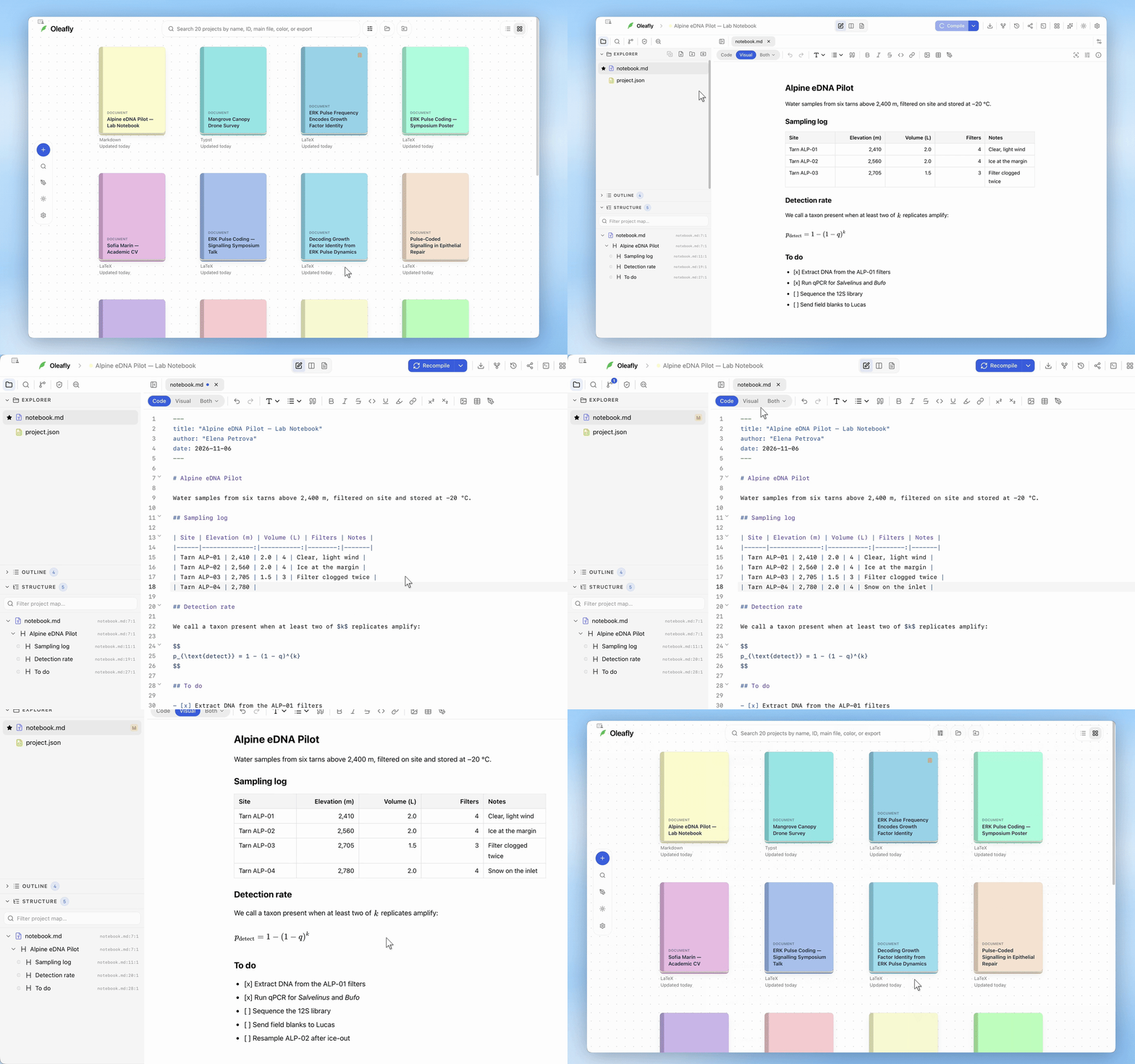
Section titled “Source and Visual editing”The switch at the start of the toolbar has three modes. Code edits the Markdown directly. Visual gives formatted editing for headings, paragraphs, lists, links, images, and tables. Both shows the source and the formatted text together. Open its menu to choose Stacked or Split. New projects open in Code, and each project remembers the mode you left it in.
Underline, highlight, superscript, and subscript are Pandoc formatting controls in Code mode. Their buttons are hidden in Visual mode. Use Code when working with metadata, citation syntax, or other source constructs.
Every toolbar tool
Section titled “Every toolbar tool”Select text before clicking a formatting control. In Code mode, most tools wrap the selection or insert a placeholder. Open More formatting options (…) to reach controls that do not fit in the bar.
Code / Visual
Section titled “Code / Visual”Switch between Code, Visual, and Both. The document remains Markdown source in every mode.
Reverse the last edit. ⌘Z / Ctrl+Z.
Restore an undone edit. ⌘Shift+Z / Ctrl+Shift+Z.
Heading → Title
Section titled “Heading → Title”Choose Title from the heading menu to insert # Title. Replace the heading text with your own title.
Heading → Section
Section titled “Heading → Section”Choose Section from the heading menu to insert ## Section. Replace the heading text with your own title.
Heading → Subsection
Section titled “Heading → Subsection”Choose Subsection from the heading menu to insert ### Subsection. Replace the heading text with your own title.
Heading → Subsubsection
Section titled “Heading → Subsubsection”Choose Subsubsection from the heading menu to insert #### Subsubsection. Replace the heading text with your own title.
Heading → Minor heading
Section titled “Heading → Minor heading”Choose Minor heading from the heading menu to insert ##### Minor heading. Replace the heading text with your own title.
Heading → Paragraph heading
Section titled “Heading → Paragraph heading”Choose Paragraph heading from the heading menu to insert ###### Paragraph heading. Replace the heading text with your own title.
Bulleted list
Section titled “Bulleted list”Start an unordered list. - Item.
Numbered list
Section titled “Numbered list”Start a sequence. 1. Item.
Task list
Section titled “Task list”In Code mode, add a task and change [ ] to [x] when complete. - [ ] Task.
Blockquote
Section titled “Blockquote”Place a quotation on its own line. > quoted text.
Emphasize selected text. **text**; ⌘B / Ctrl+B.
Italic
Section titled “Italic”Emphasize a term. *text*; ⌘I / Ctrl+I.
Strikethrough
Section titled “Strikethrough”Mark text as superseded. ~~text~~.
Inline code
Section titled “Inline code”Format a filename, command, or identifier. Text enclosed in backticks.
Underline
Section titled “Underline”Select a phrase in Code mode. [text]{.underline}.
Highlight
Section titled “Highlight”Select a phrase in Code mode. [text]{.mark}.
Superscript
Section titled “Superscript”Select the exponent in Code mode. ^text^.
Subscript
Section titled “Subscript”Select the subscript in Code mode. ~text~.
Underline and highlight use Pandoc attributes so formatting can travel into the PDF. Use these controls instead of adding raw HTML tags to the manuscript.
Insert link
Section titled “Insert link”In Code mode: Inserts [link text](url). Replace both placeholders.
In Visual mode: Opens Link URL. Enter the address and apply it to your selection. Use Remove link to keep the text without the link.
Insert image
Section titled “Insert image”In Code mode: Inserts . Replace the path and caption.
In Visual mode: Opens Image file. Enter a project path such as figures/plot.png and apply it.
PNG, JPG, PDF, SVG, GIF, WebP and BMP images all go into the PDF. Oleafly converts SVG, GIF and WebP for you when it compiles. TIFF, AVIF, HEIC and JPEG XL images can’t go in: the compile stops and names the file, so save it in one of the other formats and compile again. If a conversion fails, check that the image opens, or save it as PNG or PDF.
Insert table
Section titled “Insert table”In Code mode: Inserts three columns, a header, and two data rows. Replace the column names and cells.
In Visual mode: Inserts an editable table with the same starting dimensions.
Draw a diagram
Section titled “Draw a diagram”Opens the diagram composer in Mermaid mode. Draw a flowchart on the canvas or edit the Mermaid code, then choose Insert as Mermaid to add it at the cursor as a fenced mermaid code block. See Mermaid diagrams.
Document insights
Section titled “Document insights”Lists the document’s headings, figures, tables, equations, labels, citations, and to-dos in source order, each linked to its line. It also reads the title, authors, keywords, date, and abstract from the front matter and can copy them for a submission form. See Document insights.
Document settings
Section titled “Document settings”Changes the document type, document class, page size, columns, margins, body font, font size, language, line spacing, and section numbering. Oleafly writes your choices into the YAML front matter that Pandoc reads, and adds a front matter block if the file has none. See Document settings.
Project info
Section titled “Project info”In Code mode: Shows project statistics and selection information.
In Visual mode: Shows statistics for the visual editing surface.
In Code mode: Opens the active file’s search with ⌘F / Ctrl+F.
In Visual mode: The source toolbar’s Find button is hidden.
Import the image through the file tree before referencing it. Keep image paths relative to the manuscript, so the source archive works on another computer.
Equations and code blocks
Section titled “Equations and code blocks”Write inline mathematics as $x^2$. Put a display equation between two pairs of dollar signs:
$$\bar{x} = \frac{1}{n}\sum_{i=1}^{n}x_i$$For a code sample, enclose the code in triple backticks and put its language after the opening fence. These are source constructs; the Markdown toolbar does not have a separate equation or fenced-code-block button.
In Visual mode, a fenced block stays a code block and keeps its language and blank lines, so Mermaid diagrams survive. Type three backticks to start a new block, and press Tab to indent inside one.
Mermaid diagrams
Section titled “Mermaid diagrams”Choose Draw a diagram on the toolbar to make a Mermaid flowchart in the diagram composer. Insert as Mermaid adds it as a fenced code block:
```mermaidflowchart LR A[Sample] --> B[Measure]```In Both mode, the formatted side draws the block as a diagram. A PDF needs an image, so the composer also saves a rendered PNG at figures/mermaid-<hash>.png, and the compile puts that image in place of the block. The diagram therefore shows up in the compiled PDF too, and in Word, HTML, EPUB and PowerPoint exports. If you edit the block by hand afterwards, the PDF shows the code until you insert or save the diagram from the composer again. See Mermaid in Markdown documents.
Text in other languages
Section titled “Text in other languages”Oleafly picks fonts for the scripts it finds in the document, so Korean, Japanese, Chinese, Arabic, Hebrew, Greek, Cyrillic, Devanagari, Thai and several other scripts show up with no setup. Symbols and emoji get a font too, with emoji in black and white. A document written mostly in Arabic or Hebrew runs right to left.
Chinese characters appear in both Chinese and Japanese text, so set lang in the front matter to get the right font: ja for Japanese, zh for Simplified Chinese, zh-TW for Traditional Chinese, or ko for Korean. Without lang, Oleafly goes by the text: kana means Japanese and Hangul means Korean.
---title: "実験ノート"lang: ja---Fonts you choose yourself come first. When the front matter sets mainfont or CJKmainfont, or header-includes sets up fonts, Oleafly leaves that part alone.
Characters missing from the PDF
Section titled “Characters missing from the PDF”When no font in use has a character, the PDF still builds without it, and the compile shows a warning with a sample of the missing characters. To fix it:
- For Korean, Chinese or Japanese text, set
CJKmainfontin the front matter to a font installed on your computer that has the characters. - For other text, set
mainfontthe same way. Body font in Document settings writes it for you. - For a rare symbol, use an image instead.
Citations and bibliography
Section titled “Citations and bibliography”Import or create references.bib, add bibliography: references.bib to the YAML metadata, and cite an existing key with [@citation-key]. Pandoc uses the bibliography to produce formatted citations and a reference list.
If the front matter names no bibliography, or names a file that isn’t there, the compile uses the project’s .bib files that contain the keys you cite. A citation with no bibliography at all stays in the PDF as you typed it, such as [@smith2020], so you can write first and add references later. A document that cites nothing builds without reading any .bib file.
Import and export
Section titled “Import and export”To keep an existing draft in Markdown, create a Blank Markdown document, paste the draft into main.md, and import its images and bibliography. The library’s separate Markdown document import currently converts a draft to LaTeX. Import routes explains both paths.
Compile for PDF, or use Export to create Word, HTML, Typst, LaTeX, PowerPoint, EPUB, or plain text. Exports to LaTeX and Typst keep the bibliography, and link to your image files instead of copying them, so keep those files next to the export. When Pandoc leaves something out, the export is saved with warnings, and Show warnings lists what was dropped. Use a source ZIP to share the original Markdown and its assets. Export your work covers the sequence and the checks to make in the converted file.