
The editor
Write LaTeX, Typst, and Markdown with source and visual editing, project navigation, and a PDF beside your draft.
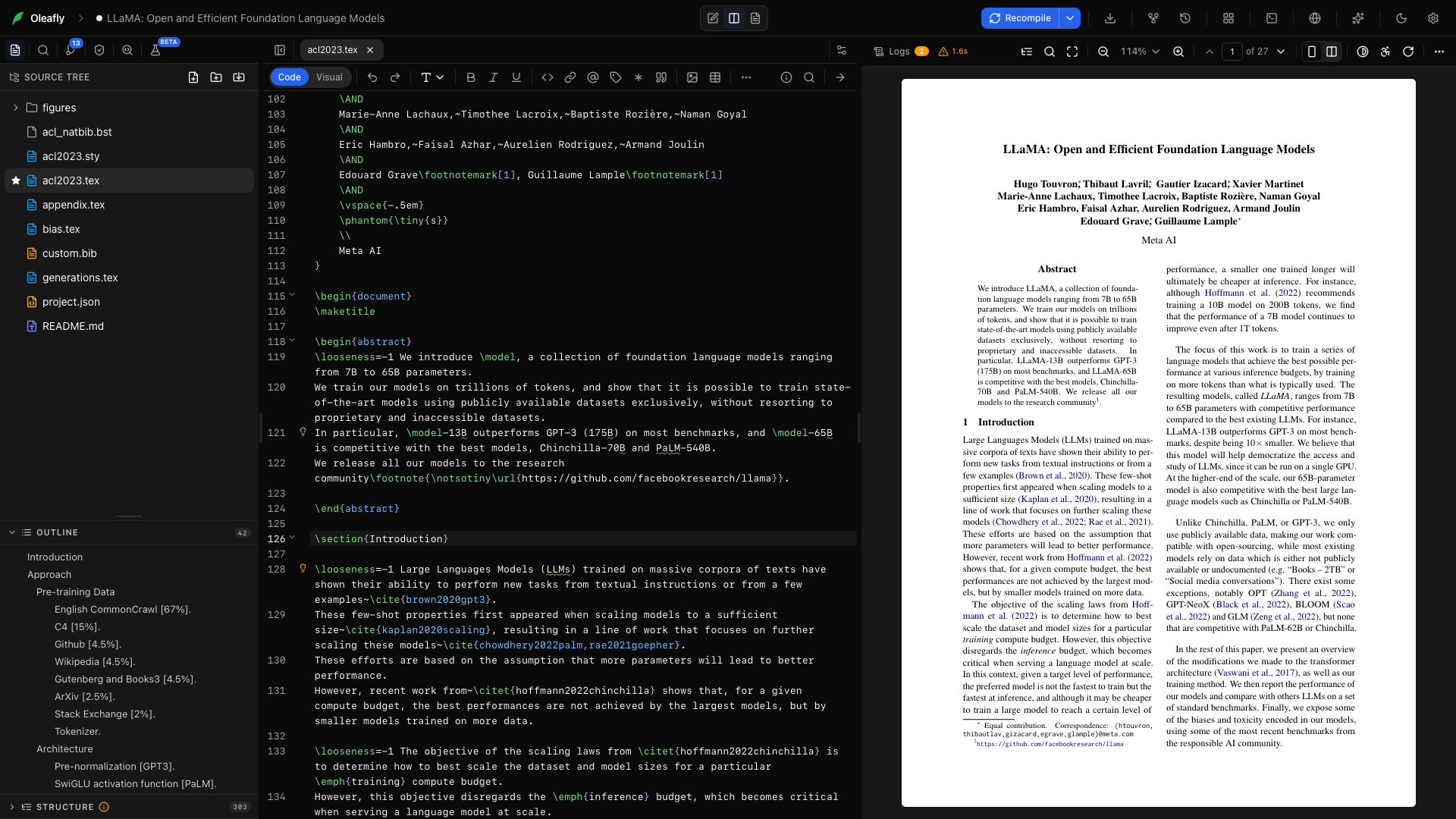
Oleafly brings source editing, document navigation, and PDF preview into one workspace. Its CodeMirror editor supports LaTeX, Typst, and Markdown. Line numbers, soft wrapping, bracket matching, and an active-line highlight are always on; everything else on this page is a click or a shortcut away.
Shortcuts below show the macOS key first; on Windows and Linux, read ⌘ as Ctrl.
Choose your writing guide
Section titled “Choose your writing guide”Each document engine has its own toolbar and source syntax. These guides explain every control and include a manuscript you can paste and compile:
Controls that do not fit in the editor width move into More formatting options (…). The workspace controls below apply across your writing sessions.
Keep your place
Section titled “Keep your place”Sticky context keeps the enclosing section or environment visible as you scroll. The project outline helps you move between chapters, while reference and citation navigation take you to the source behind a symbol. Autocomplete includes package-aware LaTeX commands, math input, and citation details.
Find and replace
Section titled “Find and replace”Press ⌘F for a VSCode-style widget in the top-right corner of the editor:
- Match case (
Aa), whole word (ab), and regular expression (.*) toggles - A live match counter (
3 of 41), withNo resultsandInvalidstates, capped at2000+for huge documents - Enter jumps to the next match, Shift+Enter to the previous, Esc closes
- Select all matches turns every match into a cursor for simultaneous editing
- The chevron expands the Replace row: replace next, replace All, and a Preserve case toggle that maps the original token’s casing onto the replacement (so replacing
figurewithimagealso turnsFigureintoImage)
Code folding
Section titled “Code folding”Click the arrow in the gutter to collapse a \begin…\end environment (nesting-aware) or a section (it folds until the next section of the same or higher level). Fold a chapter while editing a later section.
Multi-cursor and block selection
Section titled “Multi-cursor and block selection”The editor supports multiple selections: Alt-drag for a rectangular (column) selection, and Select all matches in the find widget for one cursor per match. Every cursor types, deletes, and pastes together.
Indentation and brackets
Section titled “Indentation and brackets”Four-space indent unit with auto-indent as you type. Tab indents (or accepts the open autocomplete suggestion). Brackets and quotes auto-close, backspace removes pairs together, and the matching bracket highlights at the cursor.
Vim mode
Section titled “Vim mode”Settings, General, Vim mode (or run “Enable vim mode” from the ⌘K palette) switches on full Vim keybindings: hjkl, operators and text objects (dd, ciw), :w, visual mode, and other Vim editing commands. It applies live, no restart, and all the Oleafly shortcuts on this page keep working alongside it.
Visual editing
Section titled “Visual editing”Enable Visual editor in Settings → Experimentation. LaTeX and Markdown documents then have a Code / Visual toggle at the start of the toolbar. Visual mode renders the document body as formatted text you edit directly: headings, paragraphs, bold and italic, lists, blockquotes, and links.
Use Visual for a prose pass and Code for document structure or custom commands. Unsupported LaTeX constructs remain editable source blocks. Typst documents use source editing. Review the source and compiled output when working with complex markup.
The built-in LaTeX linter
Section titled “The built-in LaTeX linter”The editor checks structural problems as you type, before any compile:
\end{itemize}without a matching\begin, or mismatched pairs (expected \end{figure}, got \end{table})- Unclosed environments
- Duplicate
\label{}keys - An odd number of
$on a line (almost always a forgotten math delimiter)
Errors get red squiggles, warnings amber, with markers in the gutter. Compile errors from the actual LaTeX run appear separately in the Logs pane, and Preflight adds its own source-level checks inline.
Word count
Section titled “Word count”Run Word count from the ⌘K palette for words, characters, and lines in the active file.
More than .tex
Section titled “More than .tex”Files open with highlighting matched to their extension: BibTeX, Markdown, JSON, YAML, TOML, CSS, shell scripts, and more. Images and PDFs open as rendered views instead of text, and binary formats are protected from accidental corruption; see Files & folders.
Related pages
Section titled “Related pages”- Autocomplete & slash commands: completion for commands, references, citations, and the
/insert menu - Code intelligence: jump-to-definition, rename, hover cards, math preview
- Spelling & grammar: offline Hunspell and Harper checking that understands LaTeX
- Keyboard shortcuts: the complete reference
- Inline AI edits: press ⌘L on a selection and describe the change