
Notes with AI
Ask the assistant or a CLI agent about a note, accept or reject the changes it suggests, and bring in files from research tasks.
Notes is an experiment and stays off until you turn it on. See Turn on Notes.
Every note has its own assistant. It reads the note and answers questions about it. When you ask for a change, it suggests one, and the change shows in the note until you accept or reject it.
What you need
Section titled “What you need”| To use | Set up |
|---|---|
| Oleafly Agent, the built-in assistant | A provider or a local model in Settings → AI Assistant. See Set up AI. Without one, the assistant shows Connect a provider. |
| CLI Agent | An agent connected in Settings → AI Assistant → CLI agents. It runs on the agent’s own sign-in. See CLI agents. |
| Research tasks and the files they make | Research tasks turned on in Settings → Experimentation, and a note linked to a project. See Research tasks. |
| An MCP client outside Oleafly | Enable MCP server in Settings → Integrations → Oleafly MCP. See Connect via MCP. |
Open the assistant
Section titled “Open the assistant”The assistant sits at the bottom of the note. Folded, it’s a small Assistant button that also names the mode, Oleafly Agent or CLI Agent.
- Select Assistant, or press ⌘J (Ctrl+J) in the note.
- To fold it, select Hide prompt, or press the same keys while the prompt is empty.
- To ask about a passage, select it and choose Ask agent in the small bar by the selection, or press ⌘J (Ctrl+J). The passage goes into your message.
While the assistant works, a Stop button appears next to the folded Assistant button.
To use other keys, change Notes: ask agent on the Notes tab of Settings → Keyboard Shortcuts.
With Oleafly Agent, each note keeps its own conversations. New chat starts a fresh one, and Chat history opens earlier ones.
When at least one CLI agent is ready, a switch at the top of the assistant chooses Oleafly Agent or CLI Agent. The model picker also lists your agents under CLI agents, and picking one switches the note to CLI Agent.
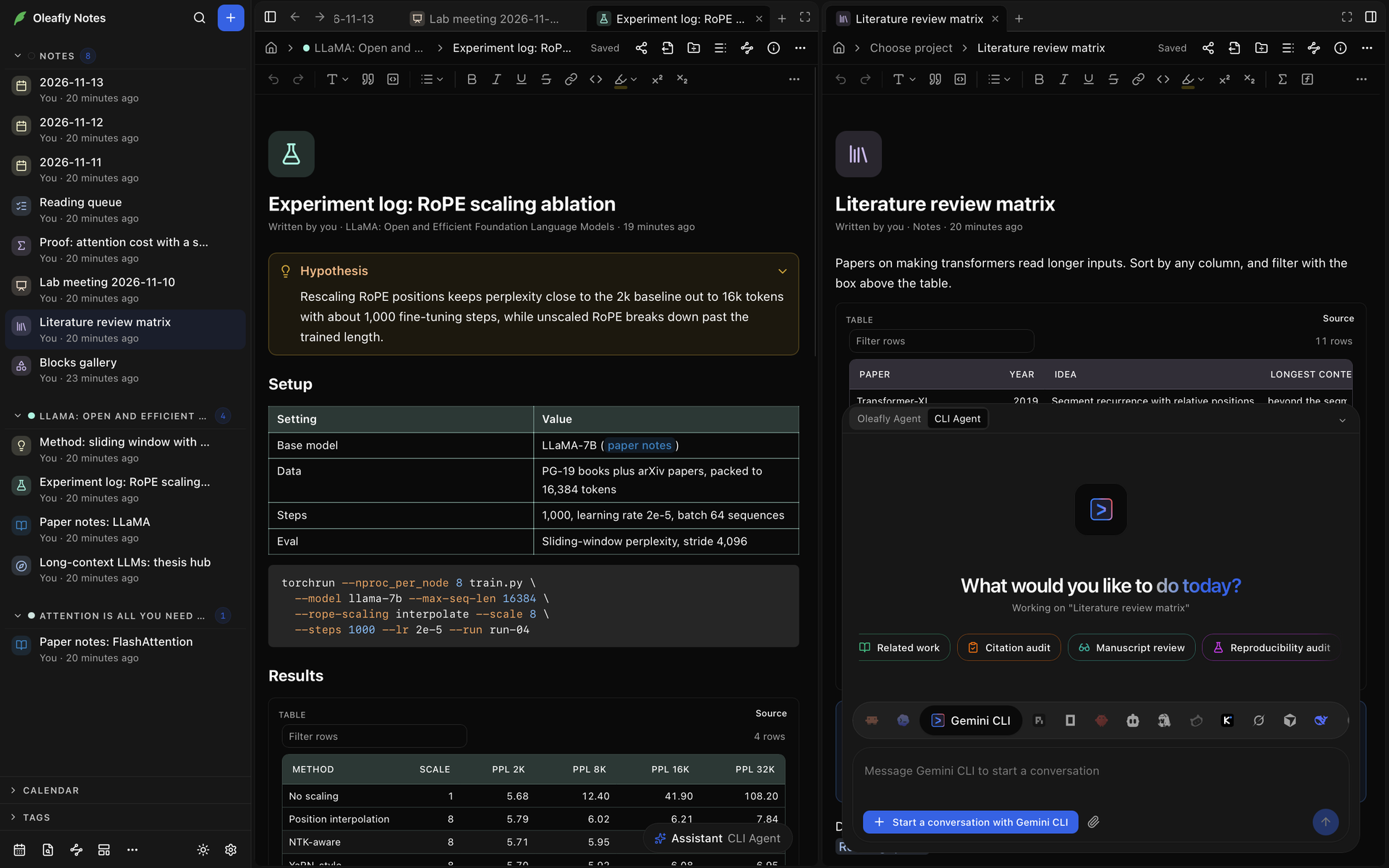
In a note you can only read, you can’t ask the assistant anything in either mode. The prompt is replaced by “You can only view this note, so the assistant can’t change it.”
Ask Oleafly Agent
Section titled “Ask Oleafly Agent”Type a question or a request. The empty prompt reads “Ask about this note or request a change. Type / for actions”.
- Type
@and pick another note to send its text with your message. - Type
/for research actions. Each one sends a written request about the note right away.
| Action | What it asks for |
|---|---|
| Update from the latest run | The results of the linked project’s latest research task, using only the numbers it reports. Shown when that project has a finished task. |
| Check claims against the code | A check of each claim against the linked project’s code, data and paper, with corrections and a list of claims it couldn’t verify. Shown when the note is linked to a project. |
| Find citations | [@key] citations from references it can find and verify. Statements without a confirmed source go in a section named Citations to find, with search terms. |
| Proofread selection | Spelling, grammar and punctuation fixes in the selected passage. With nothing selected, it reads Proofread the note. |
| Rewrite selection | The selected passage rewritten for clarity, with every fact and number kept. With nothing selected, it reads Rewrite the note. |
| Make it shorter | A shorter note that keeps every fact, number and citation. |
| Write a new paragraph | One new paragraph where it fits, from what this note and your other notes already say. |
| Add comparison table | A table built from facts already in the note. |
| Add a figure | A Mermaid diagram or a chart block with data from the note. |
| Summarize for the abstract | A section named Summary at the start, with three to five sentences that could open an abstract. |
What Oleafly Agent works with
Section titled “What Oleafly Agent works with”With each message, it gets:
- The note’s title and text, up to 12,000 characters. It can read the rest when it needs to.
- The name of the linked project.
- How many suggestions are waiting for your review.
- The names of the files beside the note.
- How many notes you have, and the titles of the 15 you edited last.
It can also:
- Search and read your other notes.
- Read, add and change the other files in the note’s folder, such as its images and data, and run commands there. It changes the note itself only through suggestions.
- Create a new note. The approval card shows its Title, Linked project, Tags and Text first.
- List, read and search the linked project’s files, such as its paper, code and data. It doesn’t change them.
- Start a research task in the linked project, when Research tasks is on.
It does less in some notes:
- In a shared note, it can’t see your other notes, so there’s nothing to
@mention or search. - In a project note, it can’t change files in the project or run commands.
Ask a CLI agent
Section titled “Ask a CLI agent”A CLI agent works in a folder, and the folder depends on the note. In a shared note, Oleafly tells the agent to stay inside that folder. The agent’s permission prompts work as in any project. See Permission requests.
A note without a project
Section titled “A note without a project”The agent works in the note’s own folder and edits the note’s file there. Oleafly shows each change in the note as a suggestion. If you close the note while the agent is still working, Oleafly takes its changes back out of the file when it finishes and keeps them as suggestions for when you open the note again.
A linked note or a project note
Section titled “A linked note or a project note”The agent works in the project’s folder, and the note’s text (the first 60,000 characters) goes with your message. Oleafly asks the agent to read the project and leave its files alone, and puts the agent in its read-only or plan mode when it has one. The changes it wants in the note come back as suggestions.
- If the agent has no read-only mode, Oleafly warns that it could change files in the project and asks whether to send your message anyway. Choose Send anyway or Don’t send.
- While the agent isn’t in a read-only mode, the assistant says “This agent can change files in the linked project.”
Review suggested changes
Section titled “Review suggested changes”Suggested changes are highlighted in the note, and a review bar sits by the current one.
- Accept, or ⌘↵ (Ctrl+Enter), keeps the change.
- Reject drops it. Undo, or ⌘Z (Ctrl+Z), brings back what you just rejected.
- With more than one change, Previous change and Next change move between them, and Accept all or Reject all settles every one.
In a personal note, Oleafly saves a version before Accept all applies the changes. To go back to it, choose More → Version history in the note’s header. See Version history.
Suggestions for a note that isn’t open wait on this computer until you open it. An icon beside the note in the sidebar and on Notes Home says “Suggested changes are waiting in this note”. Changes another program makes to an open note show up as suggestions too, unless you’re editing the note live with other people. See Edit a note in another program.
Files from research tasks
Section titled “Files from research tasks”With Research tasks on, a note linked to a project collects the files that project’s research tasks make.
- Open the note in Notes.
- Select the Artifacts button, the panel icon at the top right of Notes. Its badge counts the files for the note’s project.
- Pick a file. The panel shows its kind, the agent that made it, when, From the task with the task’s name, its path, a preview and the task’s summary.
- Select Insert in note to copy the file into the note. Oleafly adds it at the end of the note: a figure as an image (a PDF figure as a link), a notebook as a notebook block, and anything else as a link.
Each file has a kind: Figure, Interactive figure, Report, Data, Notebook or File. An interactive figure has no preview in the panel. To run it, paste its code into an HTML block in a note and select Run.
Code an agent adds
Section titled “Code an agent adds”When an agent adds an HTML block with a script or a React block, the block waits for Run, as it would if you had added it. If you ticked Always run this block, an agent’s change to the code makes the block wait for Run again. See Blocks that run code.
Linked notes in the project assistant
Section titled “Linked notes in the project assistant”With Notes on, Oleafly Agent in a project also gets the titles and a short summary of up to 12 personal notes linked to that project, most recently edited first. In a shared project, it leaves them out. Link a note to a project shows how to link one.
MCP clients
Section titled “MCP clients”With Notes on, an MCP client connected to Oleafly can list, search and read your notes, read today’s daily note, list tasks and backlinks, add text to the end of a note and rewrite one section of it. Its changes arrive in the note as suggestions. Creating a note, today’s daily note included, waits for your approval in Oleafly. A shared note can be read but not changed this way. See Connect via MCP.