
Notes in projects and shared notes
Link a note to a project, keep notes in a project's notes folder, and write a note with other people through a collaboration server.
Notes is an experiment and stays off until you turn it on. See Turn on Notes.
A note can belong with a project in two ways. A personal note lives in Notes, and you can link it to a project. Only you can see it. A project note is a file in the project’s notes folder, so it travels with the project, and everyone the project is shared with has it too.
Link a note to a project
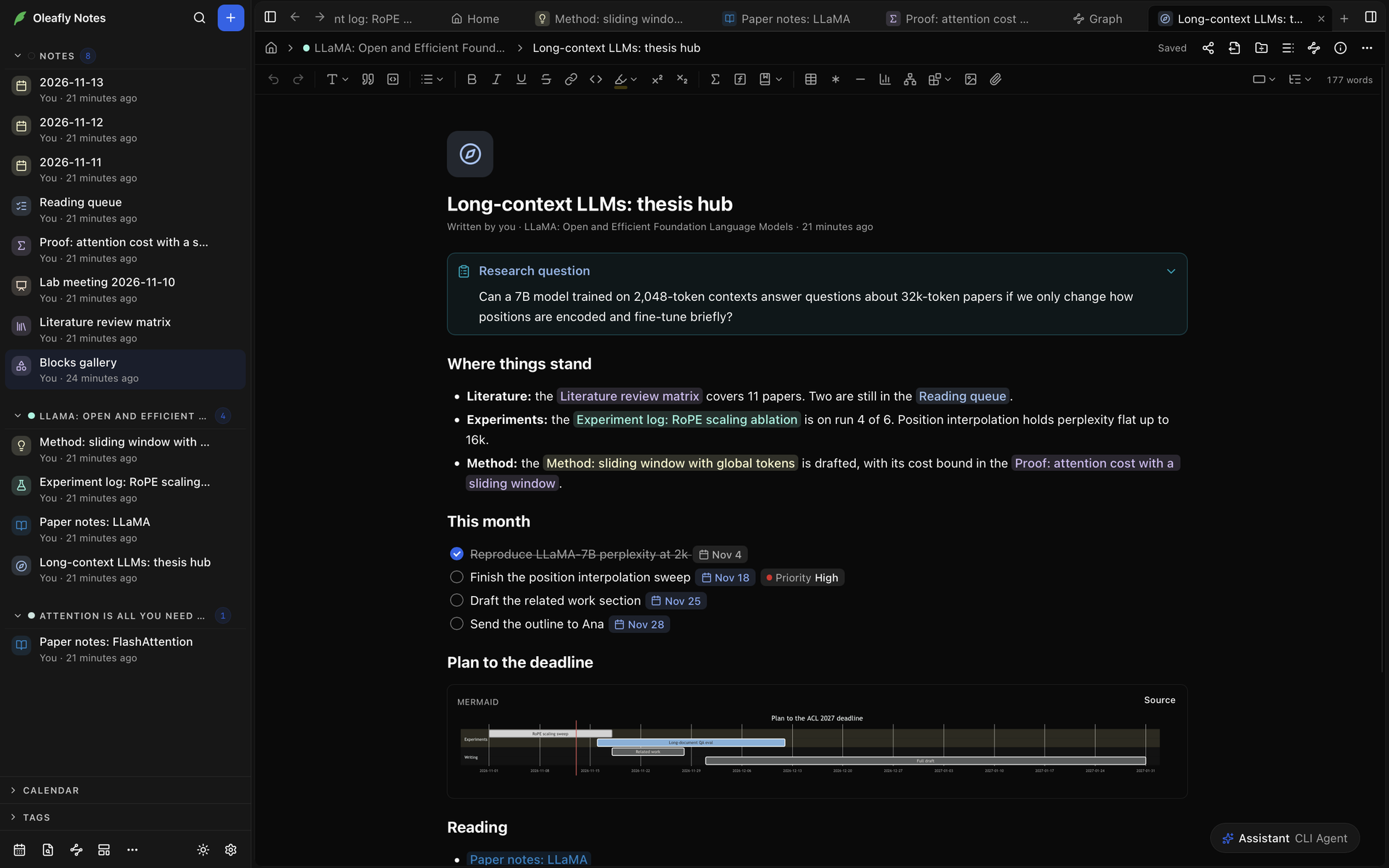
Section titled “Link a note to a project”The header of a note in Notes shows where it sits: a house icon for Notes Home, then its project, then its title.
- Open the note in Notes.
- In the header, select the project name. A note without a project shows Choose project there.
- Pick a project from the list. No project removes the link.
Link to project in the note’s More menu does the same, and so does the menu you get by right-clicking the note in the Notes sidebar. To link the note to a project that doesn’t exist yet, select New project in the note’s header. The project you create is linked to the note.
A linked note is still a personal note. It stays in Notes, and nobody you share the project with gets it. The link is kept on this computer only.
Once a note is linked:
- Citations in the note can come from the project’s bibliography.
- The assistant in the note can read the project’s files, and the assistant in the project gets the note’s title and a short summary. Notes with AI has the details.
The Notes panel in a project
Section titled “The Notes panel in a project”With a project open, select Notes in the project’s side rail, or run Open notes for this project from the command palette. The panel has two lists:
- Project notes are files in the project’s
notesfolder. Everyone who has the project has them. - My notes are your personal notes linked to this project. They stay in Notes.
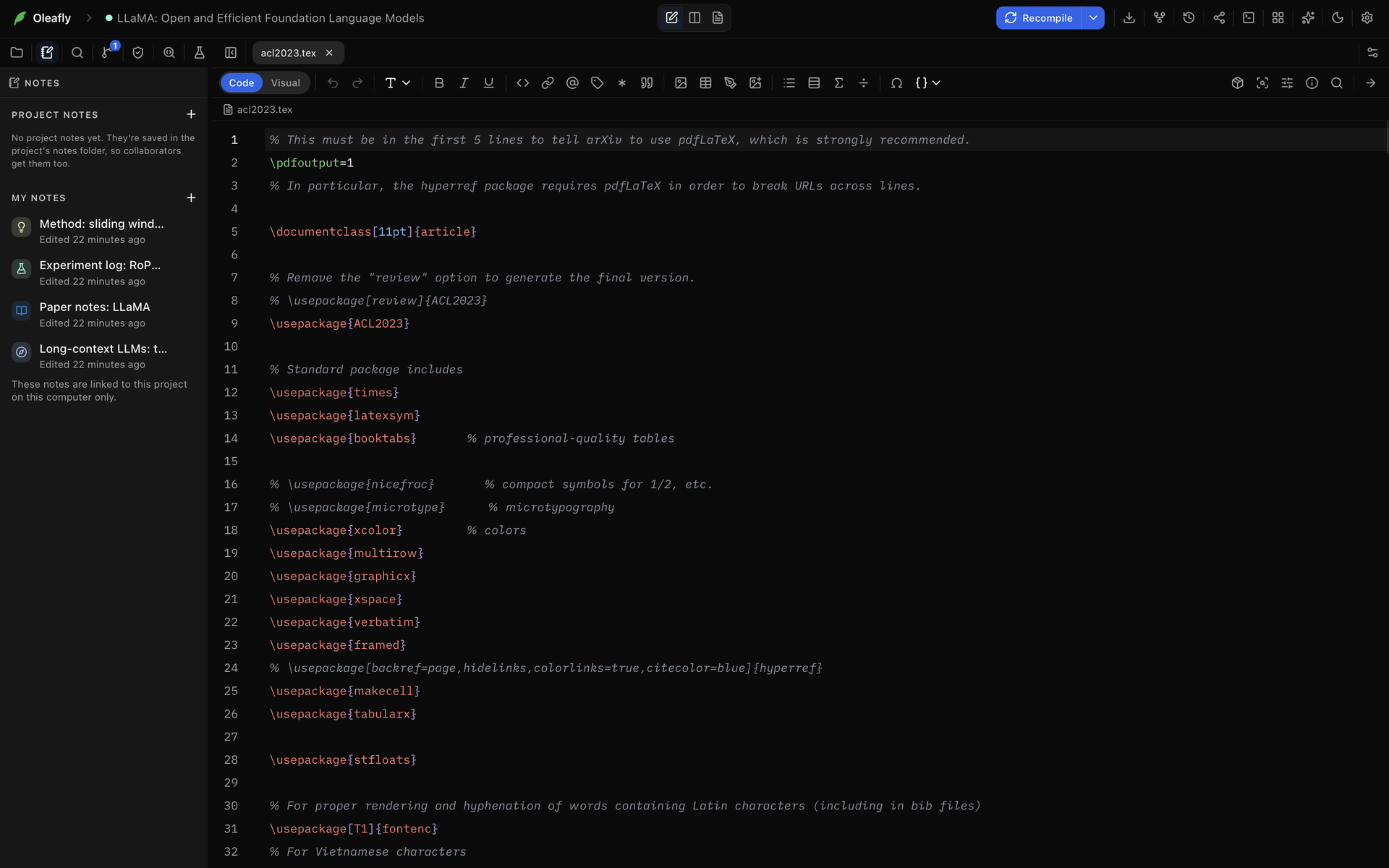
When the two lists hold more than eight notes between them, a search field appears above them.
Personal notes in a project
Section titled “Personal notes in a project”Select New personal note (+) beside My notes, or run New personal note for this project, to start a personal note linked to the project. It opens in a tab beside your files. The tab says Personal note and Only you can see it, or Shared from Notes if you’ve shared the note. Open in Notes opens the same note in Notes.
Each row under My notes shows when you last edited the note. Its menu has Move into project, Open in Notes, Rename, Unlink from this project and Move to Recycle Bin. After you unlink a note, the message offers Undo.
Project notes
Section titled “Project notes”A project note is a Markdown file at notes/<Title>.md in the project. Its front matter says kind: note, which is what makes Oleafly open it as a note. A Markdown file in notes without that line isn’t listed under Project notes and opens like any other Markdown file.
Create a project note
Section titled “Create a project note”- Select Notes in the project’s side rail.
- Select New project note (+) beside Project notes. Oleafly creates
notes/Untitled.mdand opens it. - Type a title in the field that appears in the list and press Enter. Oleafly renames the file to
notes/<Title>.md.
If you leave the field without typing a title, the note stays Untitled. New project note in the command palette also starts an Untitled note. Type its title at the top of the note.
The file name follows the title:
- Characters that some systems don’t allow in file names, such as
/,\,:,*,?,",<,>and|, become spaces. - The name stops at 80 characters.
- A name Windows keeps for itself, such as
CONorAUX, gets “note” added, as innotes/CON note.md. - When the name is taken, Oleafly adds a number, as in
notes/Methods-2.md.
Open and edit
Section titled “Open and edit”Select a note under Project notes, or open its file from the notes folder in the file tree. It opens in a tab marked Project note and Saved with this project’s files.
- Edit as Markdown shows the file’s source. The banner “You’re editing this note as Markdown.” has Edit as note to switch back. Right-click the tab for the same switch.
- Copy to my notes makes a personal note from it, linked to the project, with the images and files it uses. The copy is a separate note.
The list follows the folder on disk, so when another program adds, changes or removes a note file, Project notes updates. It reads up to 200 Markdown files from the folder and says how many more it didn’t list.
With Notes turned off, the files stay in the project and open as ordinary Markdown.
Rename
Section titled “Rename”Choose Rename in the row’s menu, or change the title at the top of the note. Oleafly updates the title in the front matter and renames the file to match, so renaming Draft to Results turns notes/Draft.md into notes/Results.md. When another file already has that name, the new name gets a number.
Oleafly saves your open notes first. If one of them can’t be saved, nothing is renamed, and you see “Some notes have unsaved changes, so the note wasn’t renamed. Save them and try again.”
Delete
Section titled “Delete”The last item in a note’s row menu removes the note. What the item is called, and what it does, depend on where the project lives:
- In a project in your library, Delete removes the file. You can’t undo this.
- In a folder opened in place, Move to Trash on macOS and Linux, or Move to Recycle Bin on Windows, moves the file there, where you can restore it.
Move a personal note into the project
Section titled “Move a personal note into the project”- Open the personal note in the project and select Move into project. It’s also in the note’s row menu under My notes and in the tab’s right-click menu.
- The dialog warns that everyone on the project will be able to see and edit the note. Select Move into project.
Oleafly writes the note to notes/<Title>.md, copies the images and files the note uses into notes/assets, and opens it. Your personal copy goes to the Recycle Bin in Settings → Data Storage. If a different file in notes/assets already has the same name, the copy gets a number and the note’s links point to it.
Project notes in a shared project
Section titled “Project notes in a shared project”When you share a project, its notes folder goes with it like any other folder, and your personal notes stay with you. With Notes on, the Share dialog says so: “The project’s notes are shared with everyone on this project. Personal notes stay private.” When the folder has no notes, it says “Personal notes stay private. Only notes in the project’s notes folder are shared.”
In a shared project:
- The Notes panel says “Project notes are shared with everyone on this project. Your personal notes stay private.”
- A project note’s tab says Everyone on this project can see and edit it.
- You write project notes together as you type, with each person’s cursor and name in the note.
- Only the owner and editors can change a project note. Everyone else can read it, and the note says “You can read this note but not edit it.”
Write a note with other people
Section titled “Write a note with other people”You can share a personal note on its own through a collaboration server, without a project. You need an account on the server. Get started shows how to add a server and sign in.
Share a note
Section titled “Share a note”- Open the note in Notes and select Share in its header. Share is also in the note’s menu in the Notes sidebar.
- On the People tab, choose the Server.
- Check the summary. It shows the note’s Files and Size and names the server that can read them.
- Select Share.
Images and other files in the note are shared with it. Oleafly settings and Git history aren’t. The same tab then shows People with access. Add people and pick their roles as you would for a project. See Add people. A shared note has a Shared mark in the sidebar and on Notes Home.
As with project notes in a shared project, only the owner and editors can write in the note. Reviewers, commenters and viewers can read it, and the assistant can’t change it for them either.
To end sharing, the owner selects Stop sharing in the same tab, and anyone else selects Leave project. When the owner stops sharing, everyone keeps their copy of the note, but it no longer syncs. When you leave, your copy stays on this computer and stops syncing. See Stop sharing and Leave a project.
What your collaborators need
Section titled “What your collaborators need”- An account on the same server, signed in to Oleafly.
- Notes turned on.
The note shows up under Shared with you in their library, like a shared project. Open downloads it and opens it in Notes. Open a project shared with you covers the list and links.
Edit together
Section titled “Edit together”While others are in the note with you:
- Their avatars sit in the note’s header. Hover over one for the person’s name, their role and what they’re doing, such as Editing followed by the note’s title. Select an avatar to scroll to the block that person is in.
- Each person’s cursor shows in their color with their name. A colored bar in the left margin marks the block someone is in. Hover over it to see who.
- Beside the avatars, the sync status says whether your changes have reached everyone, for example Up to date or Syncing. The sync status lists every status.
One shared note is live at a time. If you move to another shared note while the first is still open on screen, the second says “Live editing is on in another note”. Select Edit live here to move live editing to it.
When changes don’t go out
Section titled “When changes don’t go out”If Oleafly can’t send your last changes, a notice above the note says so:
- “Your last changes to this note weren’t sent because you can only view it now.”
- “Oleafly couldn’t send your last changes to this note, so they were dropped.”
Select × to close the notice.
Without a connection
Section titled “Without a connection”If the connection drops, keep writing. The note is saved on your computer, and Oleafly reconnects by itself and sends your changes. While changes wait, the sync status shows Offline. Changes waiting: with a number. Offline & reconnecting explains how reconnecting and merging work.
Publish a read-only copy
Section titled “Publish a read-only copy”The Publish tab of the same dialog puts a read-only copy of a note at a public link. Anyone with the link can read it without signing in. You don’t have to share the note with anyone first.
- Open the note in Notes, select Share, then Publish.
- Choose the Server.
- Select Publish. The tab shows the Public link, with Copy link and Open.
The page includes images, charts, diagrams, math, Typst and molecules. HTML, React, CSV, sequence and notebook blocks are left out.
The page doesn’t follow the note. After you change the note, the tab says “You’ve changed this note since you last published it. Publish again to update the page.” Select Publish again to update it. Unpublish stops the link right away, though anyone who saved a copy of the page keeps it. Published notes on each server’s card in Settings → Collaboration lists what you’ve published there.
Some limits:
- Only the note’s owner can publish it.
- The server’s admin has to turn on Allow public note links in the admin console’s settings. It’s off by default.
- An admin can take a published page down. Until they put it back, readers can’t open it and you can’t publish it again. You can still unpublish it.