
Notes
Keep research notes as Markdown files on your own computer, find them from Notes Home, and jot ideas down with quick capture.
A note is a Markdown file that you write in a rich editor. It can hold headings, tasks, tables, math, images and drawn blocks such as charts and diagrams, and it can link to other notes and to your projects. Each note is an ordinary file on your computer, so you can back it up or open it in another editor.
Notes is an experiment, so it’s off until you turn it on. Like every switch in Settings → Experimentation, it’s beta and may change or be removed in a later release.
Turn on Notes
Section titled “Turn on Notes”- Open Settings → Experimentation.
- Turn on Notes.
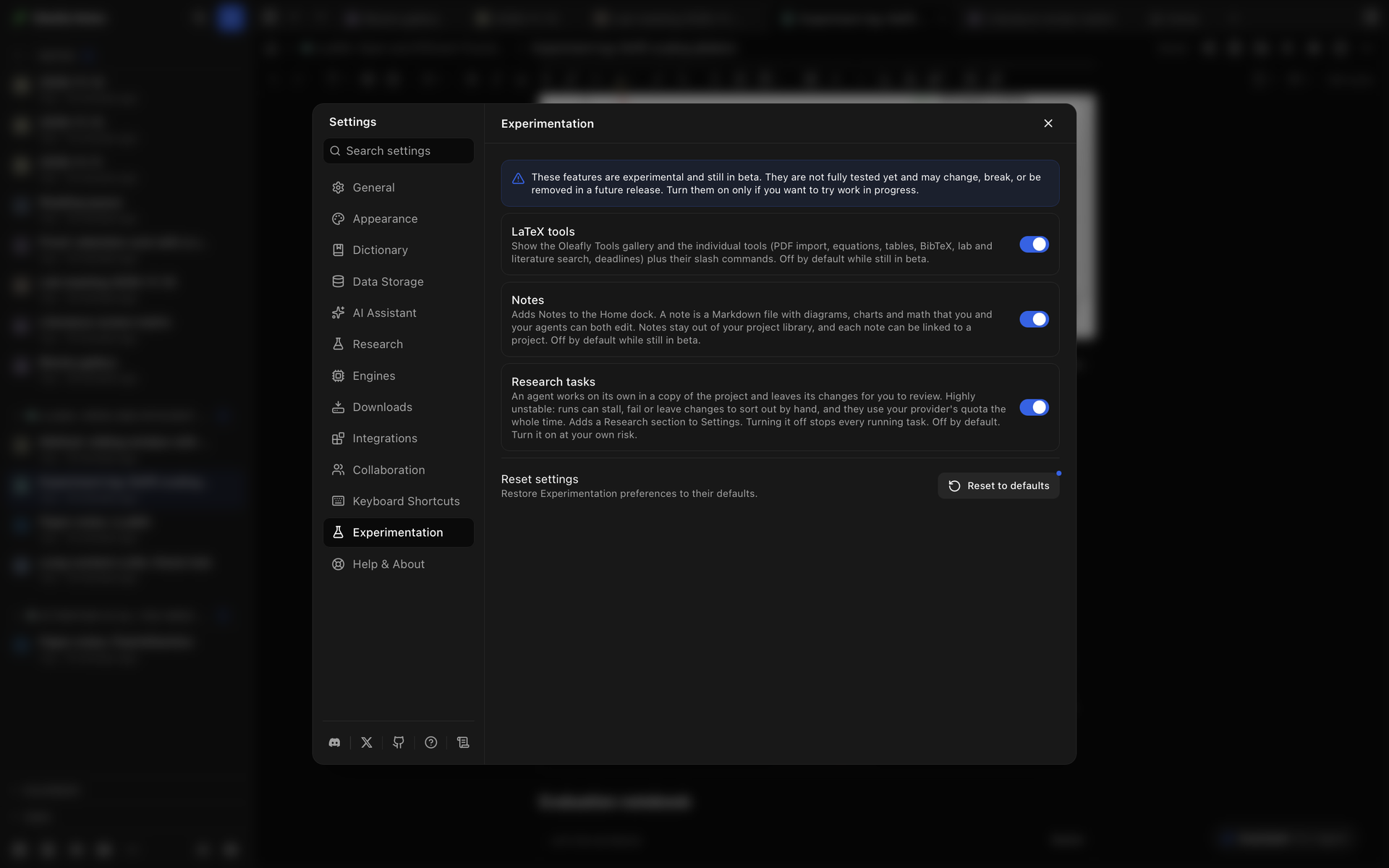
With Notes on:
- The home dock gets a Notes button. The command palette (⌘K, or Ctrl+K on Windows and Linux) gets Open Notes and Quick capture.
- Each project window gets a Notes panel in its side rail. See Notes in projects and shared notes.
- Settings → Appearance and Settings → Keyboard Shortcuts each get a Notes tab.
Your notes stay out of the project library while Notes is on. Turn Notes off and they show up in the library again as Markdown projects. Nothing is deleted either way.
The Notes workspace
Section titled “The Notes workspace”Choose Notes in the home dock, or run Open Notes from the command palette. Notes fills the window. Your notes are in the sidebar on the left, and the rest of the window holds tabs. Each note opens in a tab, and you can drag a tab to the edge of a panel to split the view.
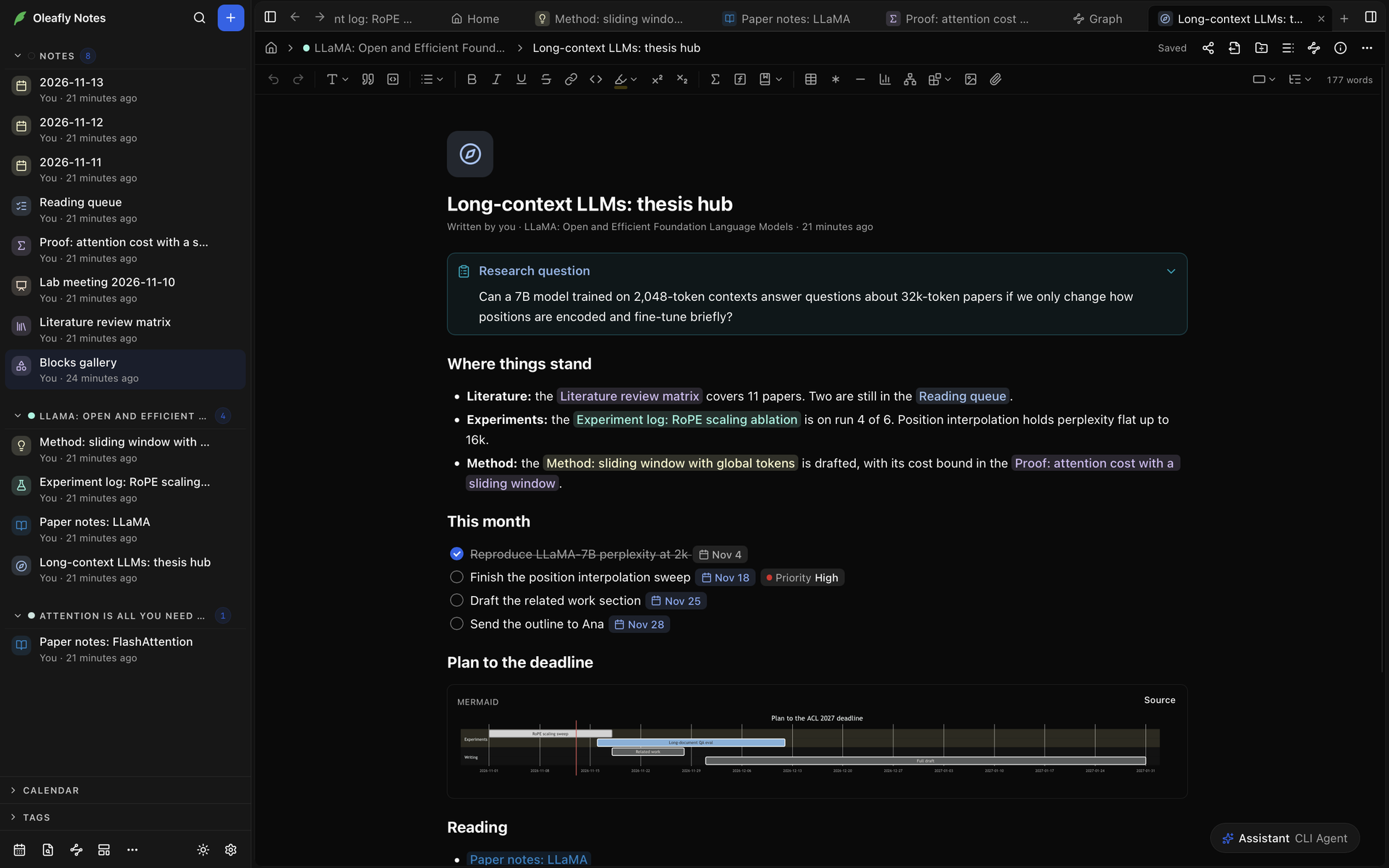
The first time you open Notes, it already holds one note, Blocks gallery, with examples of most of the blocks a note can hold.
The sidebar
Section titled “The sidebar”The sidebar lists your notes, grouped by the project each one is linked to. Find and arrange notes goes through each part of the sidebar, and Search notes explains qualifiers such as tag:lab, project:thesis and is:favorite.
Notes Home
Section titled “Notes Home”Notes Home lists your notes. It opens in the Home tab. To show it in a note’s tab instead, choose Notes Home, the house at the start of the note’s breadcrumb. Its parts are My notes, Favorites, Tasks and Attachments.
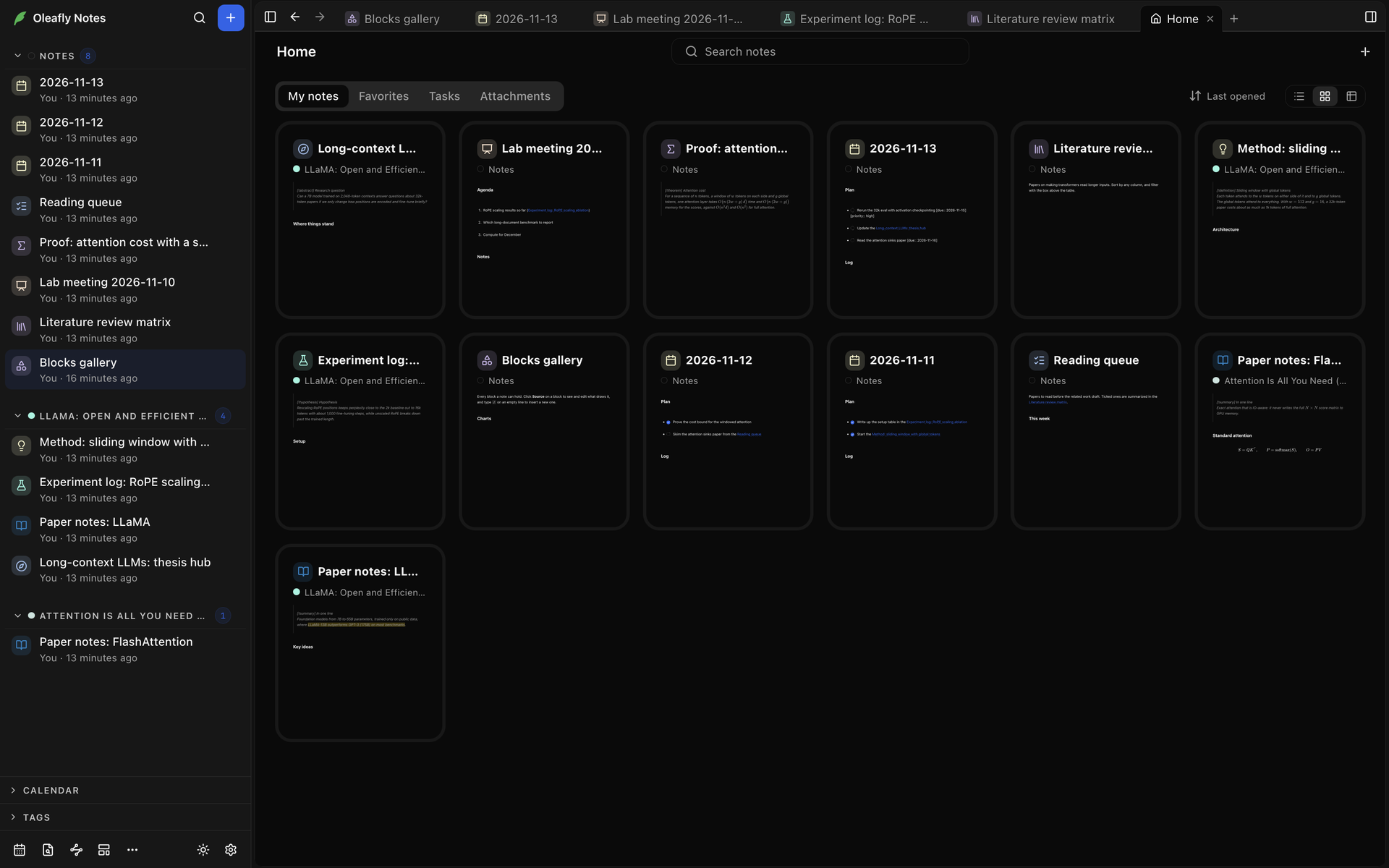
When you have no notes yet, Notes Home shows tiles for a blank note and eight of the research templates, with Import Markdown and More templates below them.
The views and sorting are in Notes Home, and the task and attachment filters are under Tasks and Attachments.
Make a note
Section titled “Make a note”- New note (⌘⌥N, or Ctrl+Shift+N on Windows and Linux) starts a blank note and opens it.
- Today’s note (⌘⇧D or Ctrl+Shift+D) opens the note titled with today’s date, such as
2026-11-12, and starts it from the Daily note template if it doesn’t exist yet. The title format, template and tag are under Daily, weekly and monthly notes in Notes appearance. - Go to note (⌘O or Ctrl+O) finds a note by its title or alias. If no note has the exact title you typed, it offers Create note ”…”.
Every Notes key is listed in Keyboard shortcuts. Change them on the Notes tab of Settings → Keyboard Shortcuts.
Start from a template
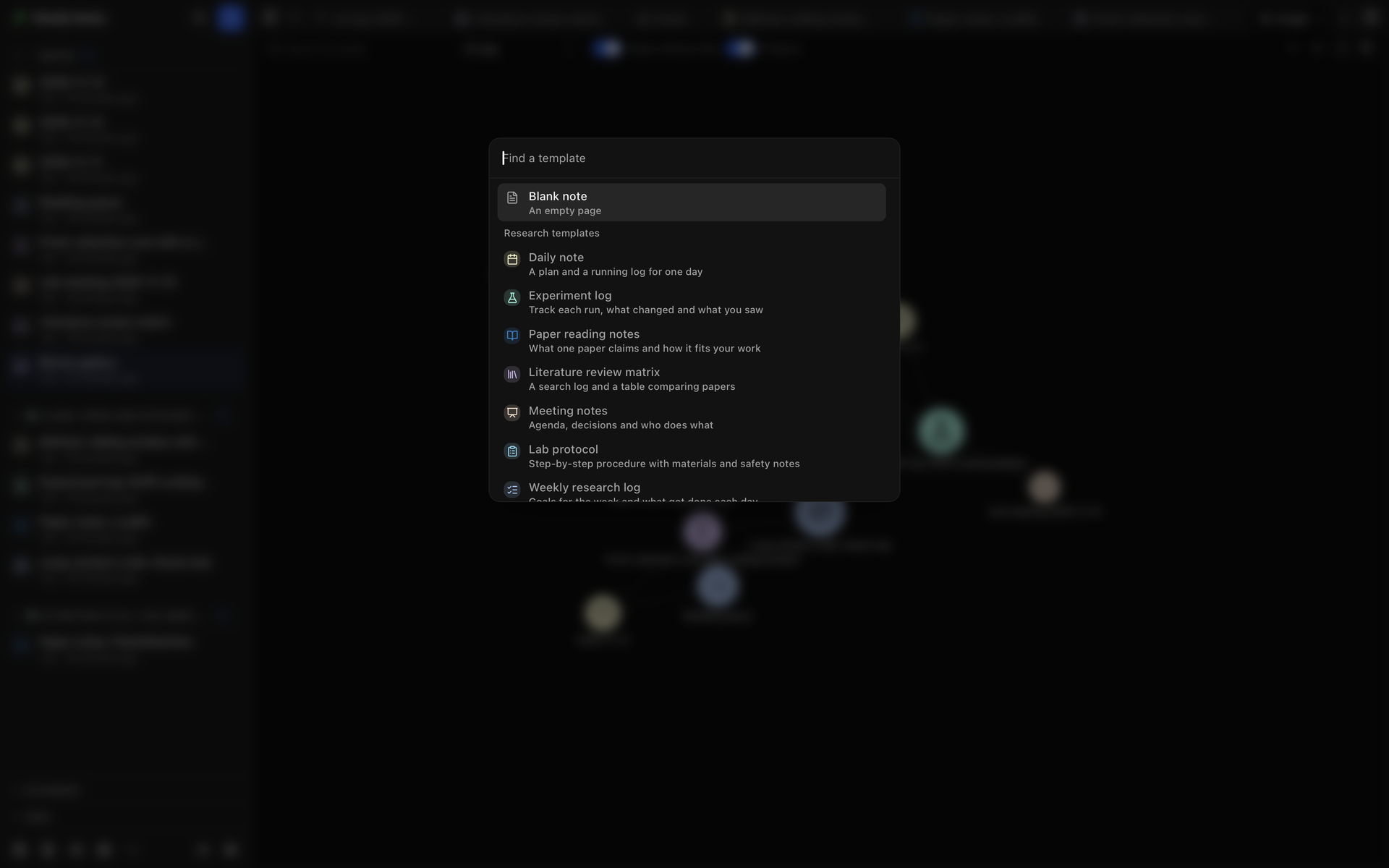
Section titled “Start from a template”Choose New from template in the sidebar bar to open the template picker. More templates, under the template tiles, opens it too. The picker has a Blank note and three groups:
- Research templates has 13 starters: Daily note, Experiment log, Paper reading notes, Literature review matrix, Meeting notes, Lab protocol, Weekly research log, Research proposal, Proof or derivation, Data analysis report, Interview notes, Screening log and Lab notebook entry. Each one fills in its own headings, properties and tags.
- Your templates lists every note you marked with Use as template in its menu. When you start a note from one,
{{title}},{{date}},{{time}}and{{weekday}}in its title and text are filled in. - From a reference lists entries that match what you type: part of a title, an author or a citation key. They come from the bibliography of the project you have open, and from your Zotero library if you connected Zotero. Picking one starts a Paper reading notes note with the reference’s details filled in. If you already have a note for that citation key, Oleafly opens it instead.
Import Markdown files
Section titled “Import Markdown files”To bring in notes you already have, choose More → Import Markdown in the sidebar bar, then Choose folder or Choose files.
- Each
.mdfile becomes a note. - Links between the files become links between the notes, and the files they link to are copied in as attachments. A link that matches no file stays as plain text.
- Files larger than 5 MB are skipped.
- Add folder names as tags tags each note with its folder, so a file in
Lab/2024gets the tagLab/2024.
Oleafly asks first when a folder holds more than 1,000 notes, or when you have imported the same folder before. Stop import ends an import at any point, and a stopped import adds no notes.
Quick capture
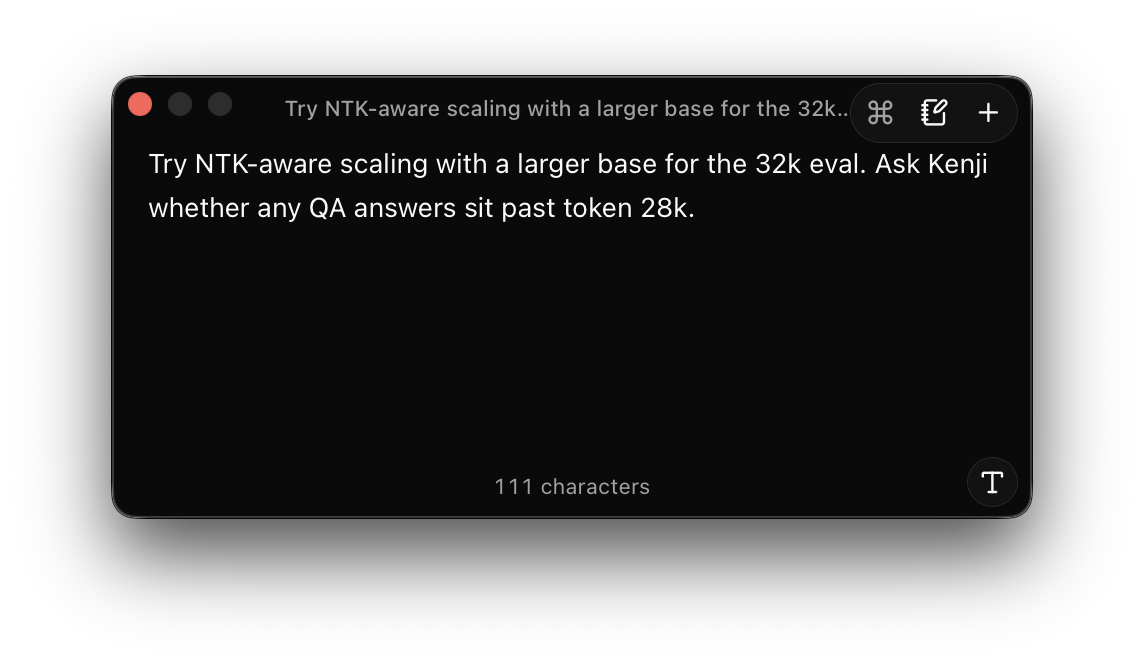
Section titled “Quick capture”Quick capture is a small window for getting a thought down without leaving the app you’re in. It stays on top of your other windows.
Open quick capture
Section titled “Open quick capture”Press ⌘⇧⌥Space on macOS or Ctrl+Shift+Alt+Space on Windows and Linux, or run Quick capture from the command palette. The shortcut works in any app while Oleafly is running, even when its windows are in the background.
To change the keys, edit Notes: quick capture on the Notes tab of Settings → Keyboard Shortcuts. The Quick capture from anywhere switch under the list turns the shortcut off. If another app already uses the keys, Settings says so, and you can pick a different shortcut.
On a Linux desktop that runs Wayland, apps can’t listen for keys outside their own windows, so the switch isn’t available. Settings shows a command instead. Add a custom shortcut in your desktop’s keyboard settings that runs this command. If Oleafly isn’t running, the command starts it and then opens quick capture.
Write and save
Section titled “Write and save”Type / on an empty line for headings, lists and other blocks, or choose Show formatting for the formatting bar. The title at the top comes from your first line. Move the pointer over the window to show its buttons.
| macOS | Windows / Linux | Action |
|---|---|---|
| ⌘↵ | Ctrl+Enter | Save as new note |
| ⌘⇧↵ | Ctrl+Shift+Enter | Add to today’s note |
| ⌘K | Ctrl+K | Open the Actions menu |
| Esc | Esc | Close the window |
- Save as new note saves your text as a note in Notes, titled with its first line, and closes the window. The note isn’t linked to a project, so it’s under Notes in the sidebar.
- Add to today’s note adds your text to the end of today’s note, and starts that note from the Daily note template first if it doesn’t exist yet. It’s offered while daily notes are turned on.
- The Actions menu has both of these, plus Copy as Markdown and Discard draft.
- New note, the plus button, saves what you wrote as a note and leaves the window open and empty for the next one.
- Open Notes opens Notes in the main window.
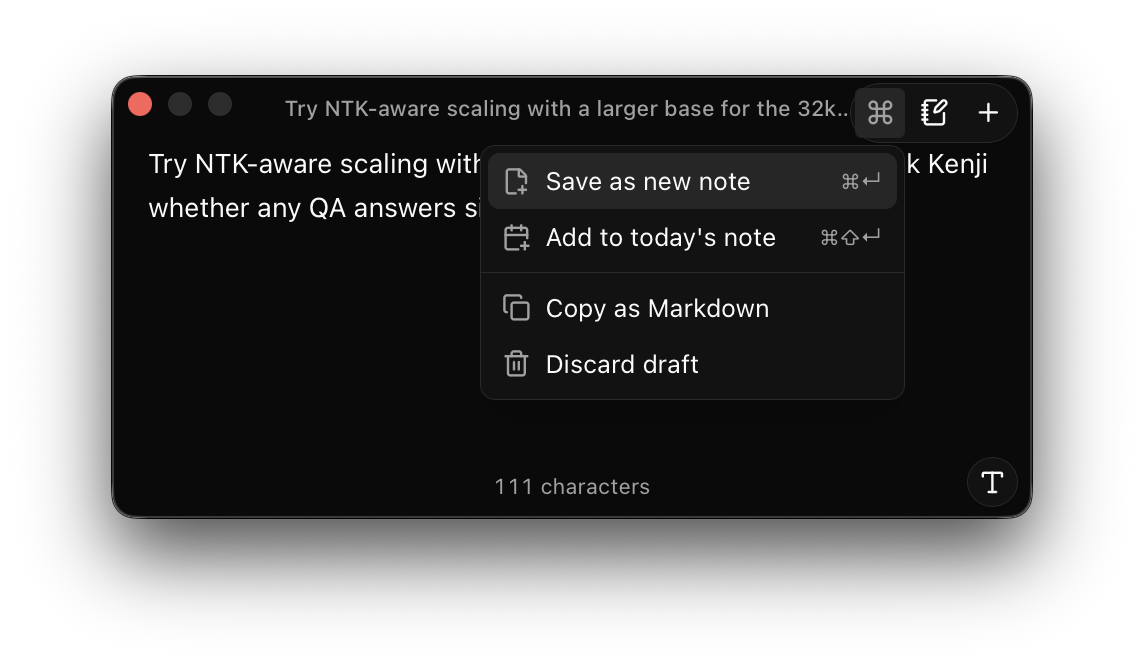
Closing the window keeps your draft, so it’s still there the next time you open quick capture. If a save fails, the window says so and keeps your text so you can try again.
Where notes are stored
Section titled “Where notes are stored”A personal note is one that isn’t stored in a project. Each personal note is a folder in Oleafly’s projects folder, next to your projects:
| System | Folder |
|---|---|
| Windows | C:\Users\<you>\.oleafly\projects |
| macOS | /Users/<you>/.oleafly/projects |
| Linux | /home/<you>/.oleafly/projects |
Here <you> is your user name. The note’s folder gets a random name such as swift-teal-otter, not the note’s title. To open the projects folder, use the button beside its path in Settings → Data Storage → Local store. See Projects folder.
A note’s folder holds:
note.md, the note itself.project.json, with the note’s name and the project it’s linked to.assets, a folder for the images and files you add to the note. The note links to them with paths that start withassets/.
A note that belongs to a project is a .md file in that project’s notes folder instead. See Notes in projects and shared notes.
Cloud sync backs up your personal notes along with your library projects, and its Projects list tags them Note. If a note changed on two computers before they synced, an icon beside the note in the sidebar and on Notes Home says “This note has a conflict copy”. Choose Compare conflict copy in the note’s menu to see the differences, then Keep this computer’s version or Use the other computer’s version. The other version is deleted.
What a note file looks like
Section titled “What a note file looks like”A note is plain Markdown with YAML front matter at the top. Oleafly writes these fields:
| Field | What it holds |
|---|---|
title | The note’s title |
agent | The name of the agent that wrote the note, when an agent did |
icon | The note’s icon |
color | The note’s color, such as mint |
kind | note, which marks the file as a note |
id | The ID that links from other notes use to find this one |
Your own properties go in the same block, along with tags and aliases. A note you use as a template also has template: true. A note’s file can look like this:
---title: Field notescolor: mintkind: noteid: 0b7f2c9e-5d1a-4e8b-9c3f-2a6d8e1f4b70tags: [fieldwork]---
## Morning survey
Light rain until nine, then clear skies over the north ridge.
- [ ] Upload the photos
Edit a note in another program
Section titled “Edit a note in another program”You can open note.md in any text editor, even while Oleafly is running. If the note is open in Oleafly, the other program’s changes show up in it as suggested changes, which you accept or reject in the note. If you had edits of your own that weren’t saved yet, Oleafly merges the two. Leave the id line as it is, because links to the note use it.
To take notes out of Oleafly as a folder of Markdown files, choose More → Export as Markdown folder in the sidebar bar. It saves the open note, or all your notes, with their attachments in an attachments folder. To save one note as a Word document, a web page, LaTeX or Typst, see Export a note.
Delete a note
Section titled “Delete a note”Choose Delete in a note’s menu, then Move to Recycle Bin. The note leaves Notes, and its folder goes to the Recycle Bin in Settings → Data Storage → Local store. Choose Restore beside it there to bring it back. See Recycle Bin.
Notes appearance
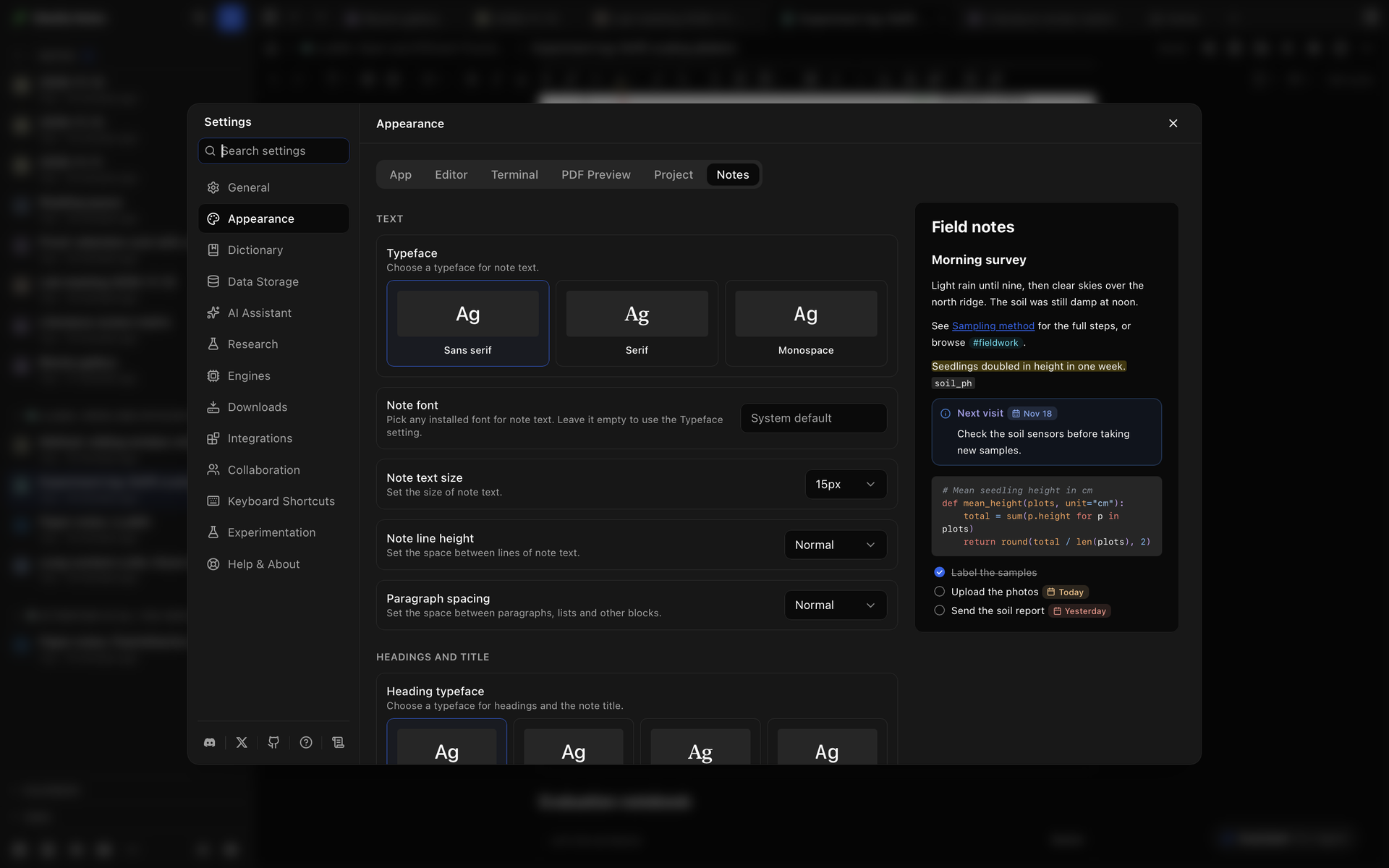
Section titled “Notes appearance”Open Settings → Appearance → Notes, or choose Settings at the bottom of the Notes sidebar. The tab is there only while Notes is on. A sample note sits beside the settings, or above them when the Settings window is narrow, and it shows each change as you make it.
| Group | What it sets |
|---|---|
| Text | Typeface (Sans serif, Serif or Monospace), Note font for any installed font, Note text size, Note line height and Paragraph spacing |
| Headings and title | Heading typeface, Heading font, Heading size and Title size |
| Layout | Note width, where Note info goes (Side panel or Inline), Task checkboxes (Square or Round), Show word count, Check spelling in notes, Replace as you type with its list of pairs, and Keep undo after closing |
| Code | Code font and Code block colors |
| LaTeX drawings | The TikZ preamble that starts every TikZ and CircuiTikZ block |
| Colors | Note accent color, Callout style, and how Date and field chips look |
| Images from the web | The sites whose images load without asking first |
| Daily, weekly and monthly notes | Week starts on, and for each kind of note its title format, template and tag, with a switch to turn it off |
A setting you’ve changed shows a reset button in its row. Reset to defaults at the bottom of Appearance resets the Notes settings along with the rest of Appearance, as Reset to defaults describes. It leaves the sites under Images from the web as they are. To remove a site, use the button beside it.
Where to go next
Section titled “Where to go next”- Write in a note: the editor, blocks, links and attachments.
- Find and arrange notes: search, tags, tasks, daily notes and the graph.
- Notes in projects and shared notes: linking a note to a project, project notes, writing a note with other people and publishing a read-only copy.
- Notes with AI: ask the assistant or a CLI agent about a note and review what it suggests.