
Settings & customization
Downloads & saved templates
Prepare fonts and templates for offline work and manage reusable AI templates.
Open Settings → Downloads to manage optional assets in three tabs: Fonts, Templates, and Dictionaries. A fourth tab, Sources, sets where those downloads and TeX packages come from. Download the packs you need before going offline so a new project has its template and fonts ready.
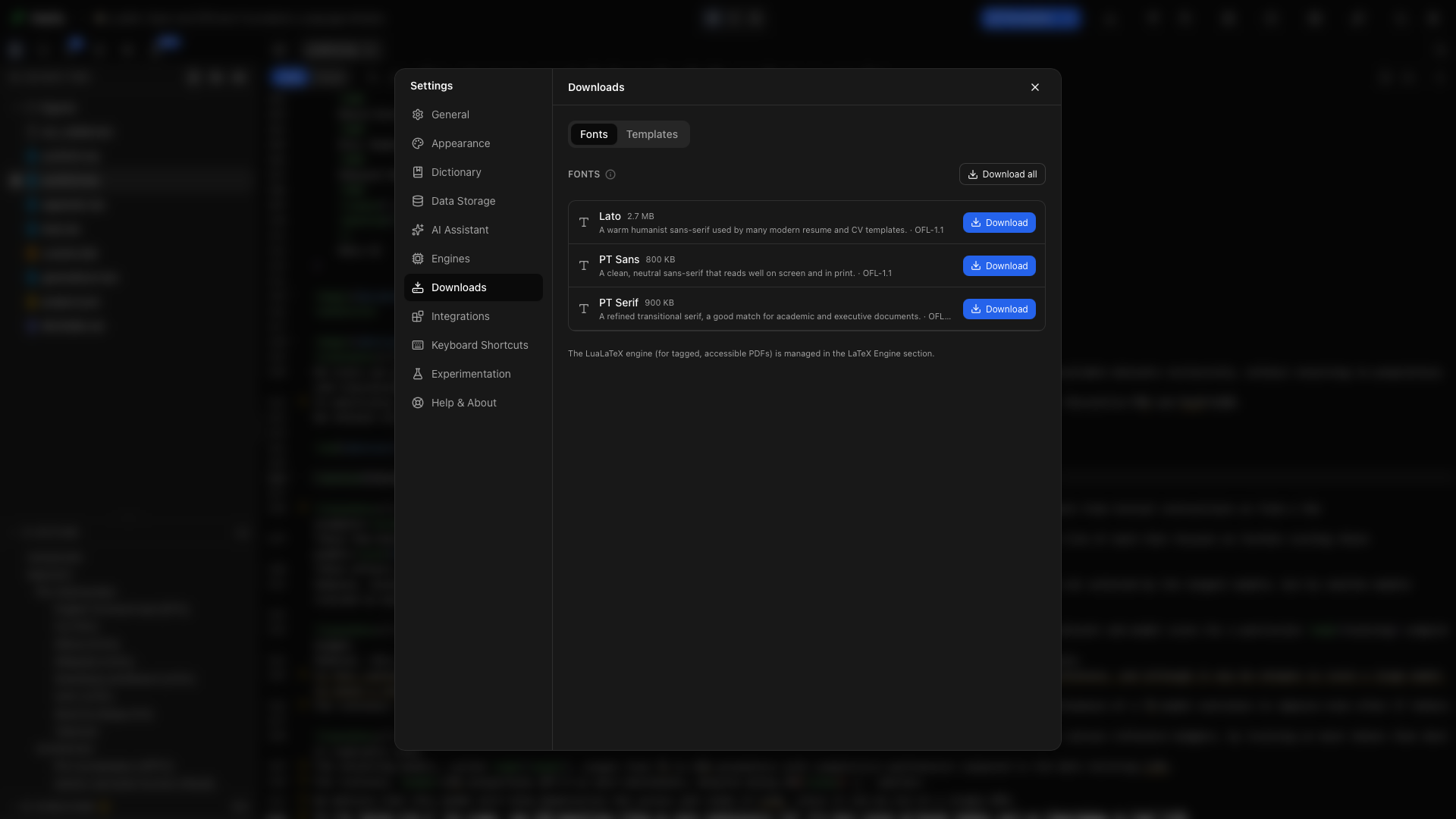
Fonts tab
Section titled “Fonts tab”The Fonts tab lists downloadable font packs with their descriptions, approximate sizes, and license information. A check mark identifies an installed pack.
Download a font pack
Section titled “Download a font pack”Click Download beside a pack. Wait for the progress message to finish. Templates that use these fonts copy the needed files into the project when it is created.
Download all fonts
Section titled “Download all fonts”Click Download all to prepare every listed font pack. The control reads All downloaded once they are installed.
Remove a font pack
Section titled “Remove a font pack”Click Remove beside an installed pack to remove its cached download. Projects that already received their own font copies keep those copies.
Add a font to a project
Section titled “Add a font to a project”Typst projects can use any downloaded font by name, including Lato, PT Sans, and PT Serif, unless the project is set to use only its own fonts. For LaTeX, open the project and click Add to project beside Lato, PT Sans, or PT Serif. Oleafly copies the font and its license into the project’s fonts folder and writes a small .fontspec file, so \setmainfont{PT Serif} works without options, and the project still compiles on other computers. The button doesn’t appear for Markdown projects, or for LaTeX projects on pdfLaTeX, upLaTeX, or pLaTeX, which can’t use these fonts.
Templates tab
Section titled “Templates tab”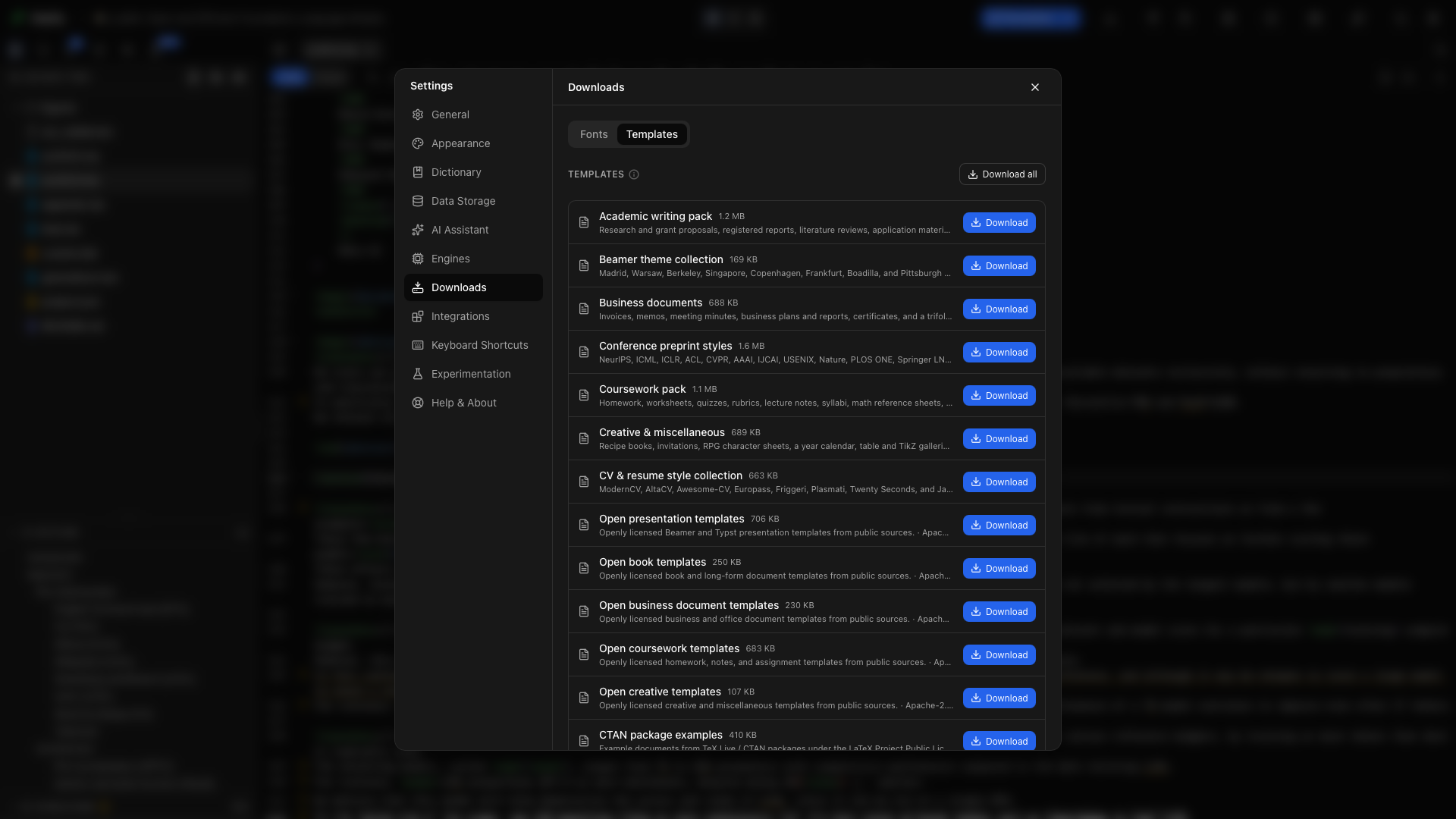
The Templates tab lists downloadable packs with descriptions, sizes, and installation status. Use it to prepare the part of the gallery you expect to use.
Download a template pack
Section titled “Download a template pack”Click Download beside the pack and wait for completion. Its templates are then available without downloading that pack again.
Download all template packs
Section titled “Download all template packs”Choose Download all to install the full list. This is useful when you want to browse and create from the available catalog while offline.
Remove a template pack
Section titled “Remove a template pack”Choose Remove to free the cached pack’s space. An existing project is a separate copy; removing a gallery pack does not delete that project’s manuscript.
Dictionaries tab
Section titled “Dictionaries tab”The Dictionaries tab lists the spelling languages you have downloaded and how much space each one uses. Five languages ship with Oleafly and are not listed. To download another, pick it as the Spelling dictionary in Settings → General. Oleafly downloads it once and keeps it for offline use.
Click Remove beside a language to delete its download. If the app or the open project used that language, spelling switches back to the default dictionary.
Sources tab
Section titled “Sources tab”The Sources tab sets where Oleafly downloads TinyTeX, other Typst versions, the Tinymist language server, font packs, and the TeX packages Tectonic reads. Oleafly checks each of these files against a checksum it ships with and refuses a download that doesn’t match, so a mirror can make a download faster or reachable but can’t change what you install.
Under Where downloads come from, choose one:
- Oleafly mirror first, the default, downloads from
mirrors.oleafly.comand uses the original host, GitHub for most files, when the mirror can’t be reached. - Original hosts downloads straight from GitHub and the other projects’ own hosts. Files only Oleafly hosts still come from its mirror.
- Your own mirror takes the address of a copy of the Oleafly mirror on your own server, such as a university or lab mirror. Oleafly tries it first, then the Oleafly mirror, then the original hosts.
A host that fails moves to the end of the list for an hour, so a blocked host costs one wait instead of one per download.
Under TeX package repository, choose where tlmgr installs TeX Live packages from. Nearest CTAN mirror, the default, uses mirror.ctan.org, which sends each request to a CTAN mirror near you. A specific repository takes the address of another TeX Live repository, such as your institution’s, ending in /systems/texlive/tlnet. The TinyTeX that Oleafly installs always uses this setting. A TeX Live you installed yourself uses it only when you enter an address. MiKTeX has its own package manager, so this setting doesn’t change it.
The OLEAFLY_DOWNLOAD_MIRROR and OLEAFLY_TEX_REPOSITORY environment variables set these choices for the whole computer. While one is set, the tab shows its value and locks that choice. Spelling dictionaries, template packs, app updates, and Typst Universe packages still come from their own hosts.
Manage AI generated templates
Section titled “Manage AI generated templates”Expand Manage AI generated templates in the Templates tab. Each saved template shows its name, description, and a preview when available.
Delete a saved AI template
Section titled “Delete a saved AI template”Click Delete beside the template and confirm the named template in the dialog. This removes it from the reusable gallery. Projects already created from it keep their own copies.
Prepare for offline work
Section titled “Prepare for offline work”- Download the template pack and fonts you want.
- Create the project while online.
- Compile it once so any TeX packages are cached.
- Set up Ollama if you also want a local assistant.
- Disconnect and check that the project compiles and the model responds.
The LaTeX compiler installation is managed separately in Engines.