
Connections
Connect via MCP
Connect Claude Desktop, Claude Code, Cursor, Codex, or another MCP client to Oleafly's local project tools.
Oleafly can act as an MCP (Model Context Protocol) server. MCP clients such as Claude Desktop, Claude Code, Cursor, Codex, and Grok CLI can read, edit, search, and compile an Oleafly project. You do not need an AI provider key in Oleafly because the client supplies the model.
This is the option when you already have a Claude (or similar) subscription and want that chat app to drive Oleafly, without pasting an API key into Settings.
Enable it
Section titled “Enable it”- Open Settings → Integrations → Oleafly MCP.
- Toggle Enable MCP server on.
The server runs only while the Oleafly process is open. It listens on 127.0.0.1 only, never on your local network. Closing the project window does not stop the server. Turning MCP off or quitting Oleafly does.
Oleafly prefers port 5323 (http://127.0.0.1:5323/mcp). If it is unavailable, the server automatically binds another free local port and saves it for the next launch. Settings shows the active URL. Its restart button reuses the current port when possible or selects another free one.
Connect your client
Section titled “Connect your client”Settings shows copy-paste snippets for common clients. Copy the live URL because the selected port may differ from 5323, then replace <token> with the bearer token from Settings (Reveal / Copy).
Claude Code
Section titled “Claude Code”claude mcp add --transport http oleafly http://127.0.0.1:5323/mcp --header "Authorization: Bearer <token>"Claude Desktop
Section titled “Claude Desktop”Add to claude_desktop_config.json (stdio bridge via mcp-remote, because Desktop prefers stdio):
{ "mcpServers": { "oleafly": { "command": "npx", "args": [ "-y", "mcp-remote@latest", "http://127.0.0.1:5323/mcp", "--header", "Authorization: Bearer <token>", "--transport", "http-only" ] } }}Cursor / VS Code
Section titled “Cursor / VS Code”In .cursor/mcp.json (or your client’s MCP config):
{ "mcpServers": { "oleafly": { "url": "http://127.0.0.1:5323/mcp", "headers": { "Authorization": "Bearer <token>" } } }}Grok CLI
Section titled “Grok CLI”In ~/.grok/config.toml:
[mcp_servers.oleafly]url = "http://127.0.0.1:5323/mcp"headers = { Authorization = "Bearer <token>" }Codex CLI
Section titled “Codex CLI”Use the Codex CLI snippet in Oleafly settings, which provides a stdio bridge to the running server. Add the entry to your Codex configuration and use the live URL and token shown by Oleafly:
[mcp_servers.oleafly]command = "npx"args = [ "-y", "mcp-remote@latest", "http://127.0.0.1:5323/mcp", "--header", "Authorization: Bearer <token>", "--transport", "http-only"]The bridge requires Node.js and npx. Restart or reconnect the client after changing its configuration.
The mcp.json file next to your Oleafly data (shown in Settings) holds the same URL and token if you prefer to script setup. It is written only while the server is running (mode 0600 on Unix) and deleted when the server stops. Treat it like any other local secret.
What the tools can do
Section titled “What the tools can do”Most MCP tools share their names and schemas with the in-app assistant. Project discovery and routing tools are provided by the desktop backend.
Tools target the project open in the app when one is available. With a connected window, use list_projects and open_project to select another project.
After the last window closes, the backend keeps read_file, list_files, and search_project available. Native writes, replacements, creates, and renames also remain available when the approval policy permits them. These tools use only the last project reported by the app, and refuse the call if that project is no longer valid. They never guess from other projects in the library. Status, project selection, deletion, compilation, logs, PDF inspection, theme changes, and figure tools require a connected window.
Orientation
Section titled “Orientation”| Tool | What it does |
|---|---|
get_status | Oleafly version, open project, main document, last compile status |
list_projects | Projects with IDs, names, engines, kinds, main documents, timestamps, colors, preview state, and export history |
open_project | Open a project by id so other tools target it |
list_files | Project file tree |
project_map | Outline, labels, citations, macros, input graph, unresolved refs |
search_project | Search text in the current project |
Reading
Section titled “Reading”| Tool | What it does |
|---|---|
read_file | Read a project file |
get_log | Last compile log |
get_pdf_text | Text extracted from the compiled PDF |
Editing
Section titled “Editing”| Tool | What it does |
|---|---|
write_file | Write or overwrite a file |
replace_in_file | Find and replace within a file |
create_file | Create a file or folder |
rename_file | Rename or move a path |
delete_file | Delete a file or folder |
set_main_doc | Set the compile entry document |
Compile and figures
Section titled “Compile and figures”| Tool | What it does |
|---|---|
compile | Compile the project to PDF |
preview_figure | Compile a figure in isolation and return a PNG image |
insert_figure | Insert the last previewed figure into the document |
load_image | Load an image from the project for figure work |
| Tool | What it does |
|---|---|
toggle_theme | Toggle light / dark mode |
Approvals and safety
Section titled “Approvals and safety”Many MCP clients ask before calling a tool. Oleafly also applies the policy selected in Settings → Integrations → Oleafly MCP:
- Confirm every change is the default. Writes, renames, and deletes show an approval card while an app window is connected. Without a window, those operations are refused because there is nowhere to show the card.
- Auto-approve edits, confirm deletes lets writes and renames run in the backend. Deletes still need a connected window for confirmation.
- Trust this connection lets backend writes and renames run without an Oleafly prompt. Deletion still requires a connected window. Use this policy only when you trust the client and its own approval controls.
Two more switches back this up:
- Read-only mode (separate toggle) removes the mutating tools from
tools/listentirely, so an external app can read and compile but never modify files, whatever the policy above. - Bearer token: a 256-bit random value stored in authenticated encrypted local storage under
~/.oleafly/. Regenerate it to invalidate old clients. General config reads never expose the token. Only the running server’s connection controls can reveal it in Settings.
And two invariants you do not configure:
- Localhost only: the bind address is
127.0.0.1. Requests carrying a browserOriginheader are rejected, andHostmust be loopback. - Project confinement: backend file tools accept project-relative paths and confine canonical paths to the project reported by the app. A tool call cannot supply another project ID or make the backend choose a different library project.
Watch it work
Section titled “Watch it work”While a window is connected, an MCP activity tab logs incoming calls. Backend calls can continue after the last window closes, but there is no activity panel or approval card until a window reconnects.
Why claude.ai in the browser cannot connect
Section titled “Why claude.ai in the browser cannot connect”A cloud chat service cannot reach 127.0.0.1 on your machine. Use Claude Desktop (or Claude Code, Cursor, etc.) instead. Do not tunnel the MCP port to the public internet: that would let anyone with the URL edit and delete your local project files.
Troubleshooting
Section titled “Troubleshooting”| Symptom | What to try |
|---|---|
| Some tools are unavailable | Figure previews and other UI-only tools need an Oleafly window. Open the app and project, then retry tools/list. |
Port changed from 5323 | The preferred port was unavailable, so Oleafly selected a free one. Copy the live URL from Settings. |
| HTTP 401 | Token mismatch (for example after Regenerate). Copy the new token into the client. |
| HTTP 403 | Client sent an Origin header or a non-loopback Host. Use a native MCP client, not a browser tab. |
| Call timed out | Each tool call waits up to 5 minutes (300 s) for compiles or for you to click Approve. Approve or reject pending cards, or retry. |
| Cannot connect | Oleafly must be running with MCP enabled. The server does not run in the background after quit. |
Add external tools to Oleafly
Section titled “Add external tools to Oleafly”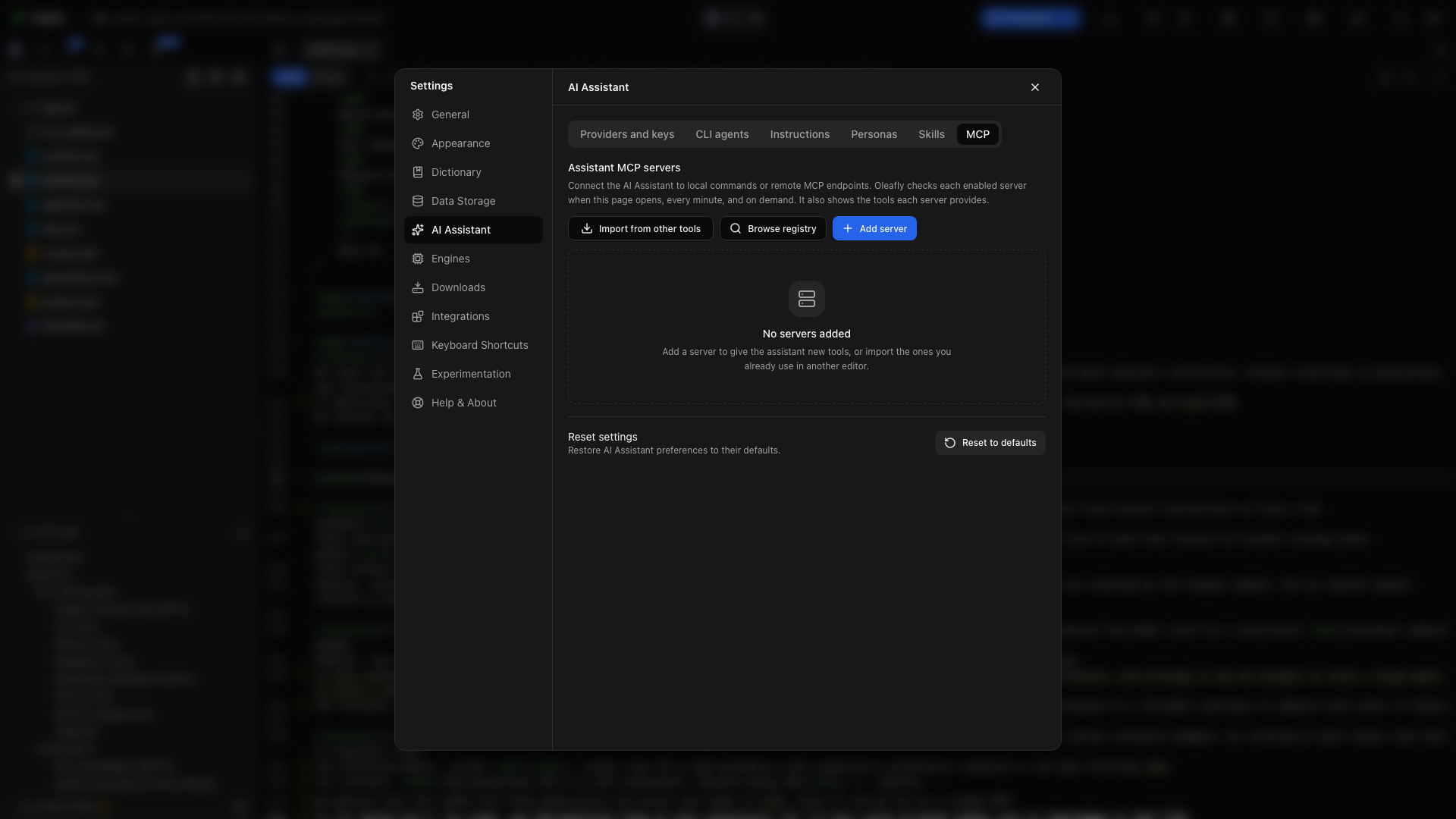
To give the built-in assistant more tools, open Settings → AI Assistant → MCP.
- Browse registry to find a server and review its setup.
- Import from other tools to select existing server configurations. Review the selected entries before importing.
- Add server to enter a server yourself, then validate the connection.
Connected servers expose their tools to the assistant. You can inspect connection status and enable or disable servers from the same page. Credentials and commands belong to each server configuration; review them before connecting a new server.
Configure an external server by hand
Section titled “Configure an external server by hand”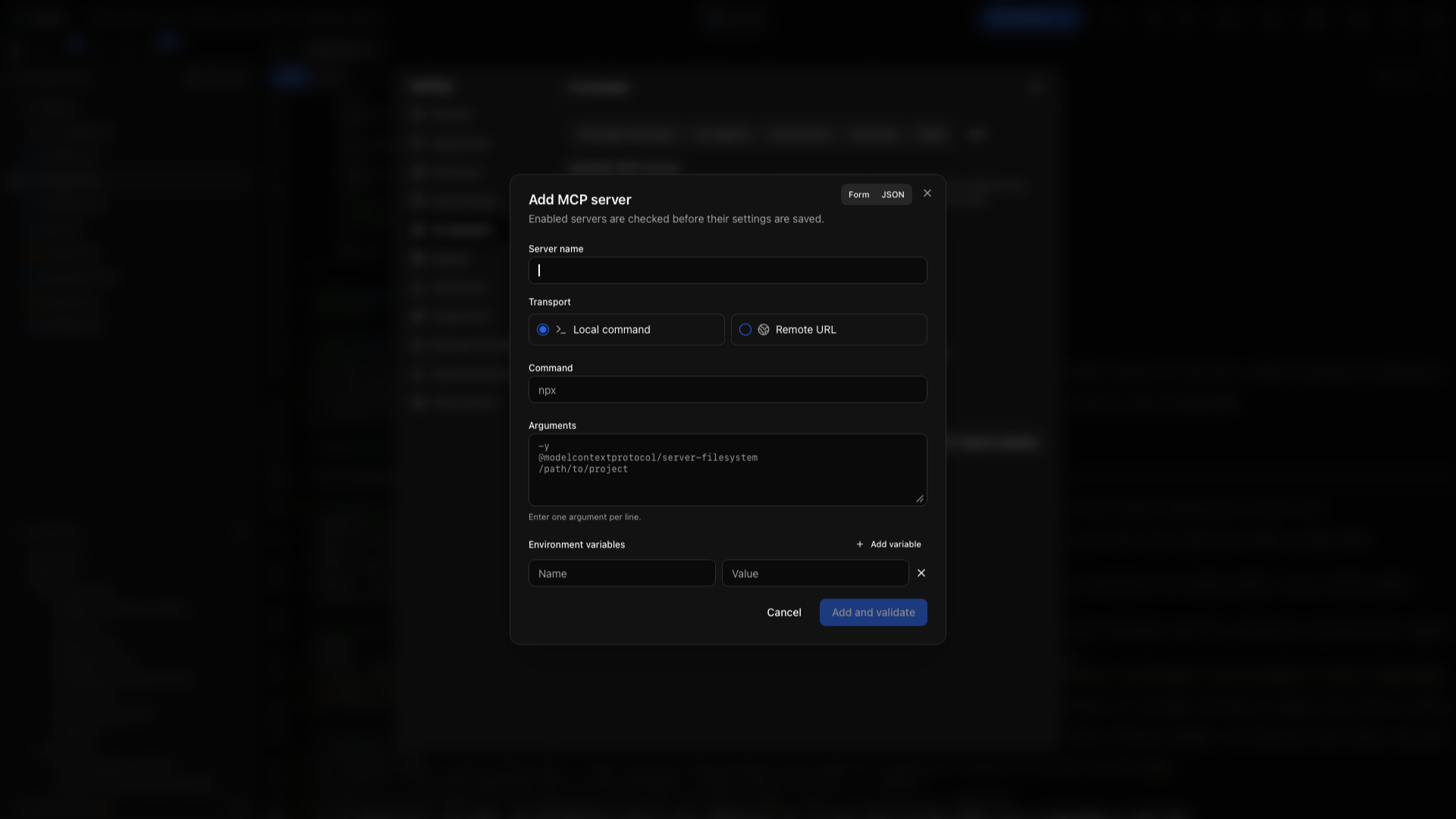
Under Settings → AI Assistant → MCP, choose Add server. A local server runs a command over stdio; a remote server connects to a URL. The JSON form uses Oleafly’s server format:
{ "name": "Research tools", "enabled": true, "transport": "stdio", "command": "your-mcp-server", "args": ["--stdio"], "env": {}}Replace the command and arguments with those documented by the server you installed. Environment values belong in the env object.
{ "name": "Research service", "enabled": true, "transport": "remote", "url": "https://your-server.example/mcp", "headers": { "Authorization": "Bearer YOUR_TOKEN" }}Replace the example URL and token with the service’s connection details. Use Validate to check the connection, then review the tools the server exposes. Enable or disable the server from its row. Use its edit action to change configuration and its remove action to disconnect it.
Import existing MCP configurations
Section titled “Import existing MCP configurations”Choose Import from other tools, inspect the discovered configurations, and select the servers you want. Review executable paths, environment variables, URLs, and credentials before importing. This imports connection settings; it does not install the server executable for you.
Try the connection
Section titled “Try the connection”- Open a small practice project in Oleafly.
- Connect the external client using the snippet copied from the app.
- Ask the client to call
get_statusand list the project files. - Ask it to read the main document and suggest a title change.
- Review the action in Oleafly before approving a write.
- Compile and inspect the PDF.
For a connected external tool inside Oleafly, start with a simple read-only request supported by that server and inspect the resulting tool card in chat.